

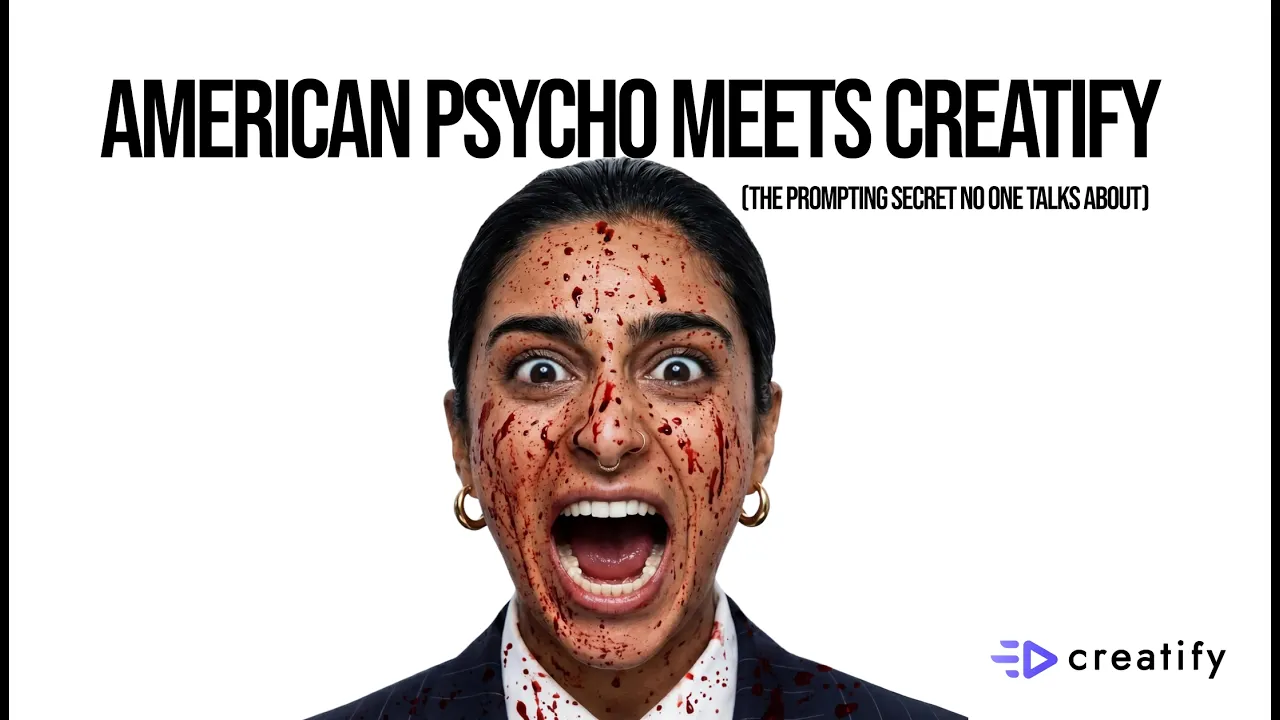
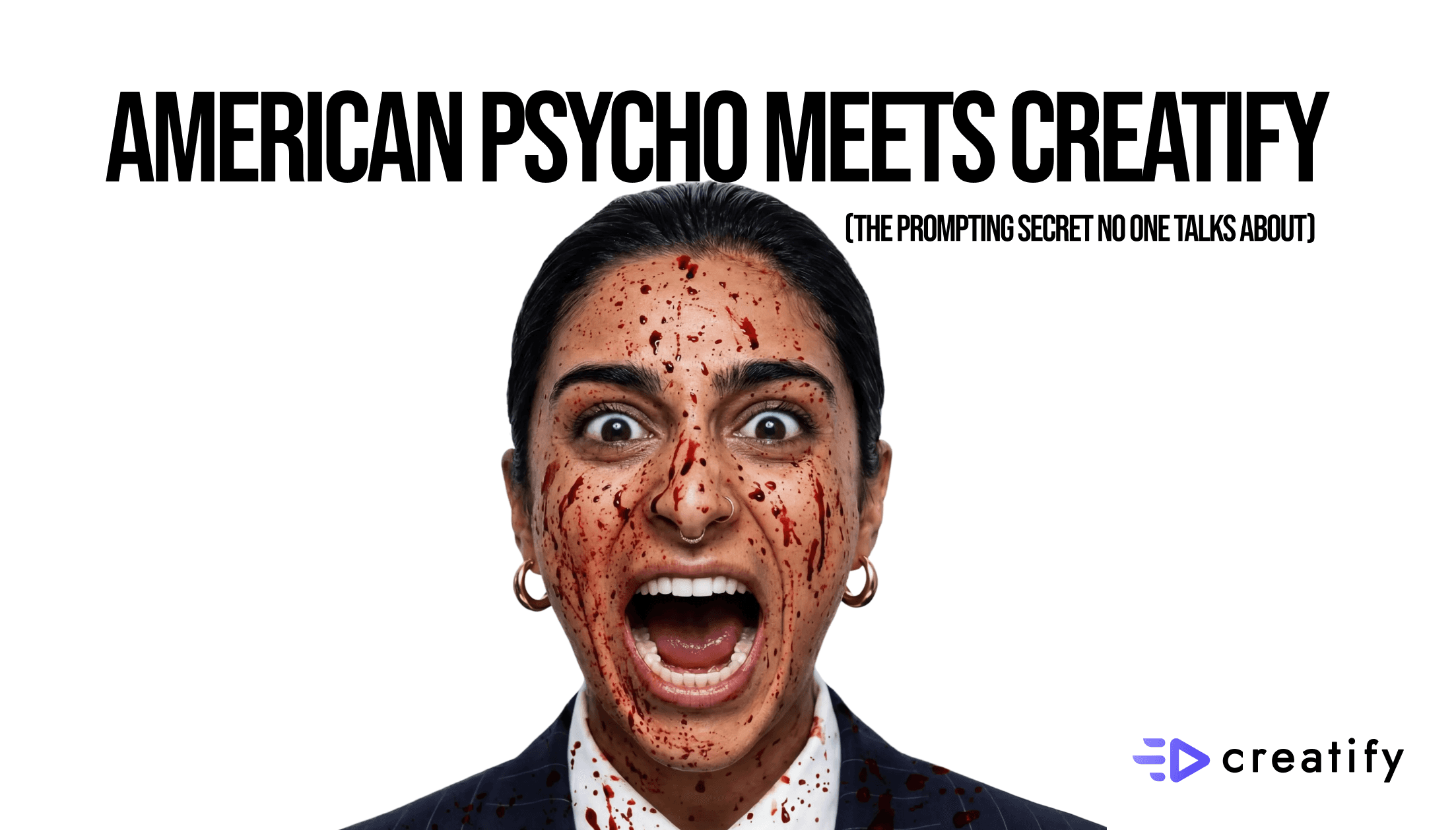
I Recreated American Psycho with Creatify + Kling 3.0
I Recreated American Psycho with Creatify + Kling 3.0
Feb 20, 2026

Creatify Team
February 20, 2026
SHARE


IN THIS ARTICLE
How to Recreate Iconic Movie Scenes With AI Using Creatify | Creatify
Learn how to recreate this iconic American Psycho scene using Creatify's asset generator, Kling 3.0, and smart prompting techniques.
How to recreate iconic movie scenes with AI using Creatify
No VFX team. No budget. No film time. Just Creatify's asset generator and a well-written prompt.
That's exactly how we recreated one of the most iconic scenes from American Psycho — Patrick Bateman's hallway walk — swapping in a completely different person. The result looked cinematic, and the whole process took a fraction of the time and cost of traditional production.
Here's exactly how we did it, step by step, so you can recreate your own iconic scenes (or build cinematic ad content) using the same approach.
Break the scene down before you prompt
Before touching any tool, we rewatched the original scene and broke it into two distinct shots. The first is roughly five seconds of Bateman walking toward the camera with headphones on. The second is another five seconds showing him from behind, walking down the hallway into his office.
This is the storyboarding step, and it matters. Trying to generate an entire multi-shot scene in a single prompt is one of the fastest ways to get messy, hallucinated output. Each shot needs its own prompt, its own reference image, and its own generation cycle.
Generate your reference images with Nano Banana Pro
With the shots mapped out, the next step was creating reference images — stills that would serve as the starting point for video generation.
We used Creatify's image-to-image tool with Nano Banana Pro, which remains the top model for consistent, high-quality image generation in asset generator. Two reference images went in: a photo of the person we wanted to insert into the scene, and a screenshot of Bateman from the original film.
The prompt described the transformation in detail — taking the person from the first image and placing them into the character's look from the second, including wardrobe, posture, and the color grading of the original scene. Resolution was set to 4K, aspect ratio to 16:9 for a cinematic frame, and we generated two outputs per scene to have options.
The key here is being specific about character referencing. The more detail you give around appearance, styling, and film-grade color treatment, the more consistent your output will be.
Use Claude to draft your video prompts
Here's where things get interesting. Instead of writing video prompts from scratch, we used Claude to generate a brief description of each scene from American Psycho, then refined those prompts using Kling 3.0's own documentation.
The first pass from Claude gave us something functional: "A man walking confidently down a sleek, modern office hallway" — plus details about the environment and lighting. It was a solid starting point, but generic.
Apply the model's documentation to sharpen your prompts
Kling 3.0 emphasizes shifting through time — meaning it responds well to prompts that clearly describe camera movements, transitions, and temporal progression. We fed Claude the model's documentation and asked it to restructure the prompt accordingly.
The result broke the prompt into distinct components: camera, subject, action, context, texture and atmosphere, and audio.
The difference was clear in the camera and motion sections. The original prompt said "shot from a low angle, tracking backward as he strides forward." The documentation-informed version became more precise: low angle tracking shot, moving backward at walking pace, medium shot framing. It added the kind of terminology a director would use — tracking shot, framing type, specific movement speed.
For motion, the original said "walking confidently." The refined version said "walks with a slow, deliberate, rhythmic stride, expression shifts from self-satisfied smirk, coat moves slightly with each step." That level of physical detail is what separates a flat AI clip from something that actually feels cinematic.
We also added an audio direction — an 80s-styled score to match the film's aesthetic without running into copyright issues.
Generate your video with Kling 3.0
With the prompts ready and reference images generated, we moved into video generation. We switched to image-to-video mode, selected Kling 3.0 Pro with native audio, uploaded our generated stills, and pasted in the refined prompts.
Each clip was set to about seven seconds. In the advanced settings, we added negative prompting to guard against unwanted artifacts and adjusted the prompt adherence scale.
Both scenes generated cleanly. The first showed a confident walk toward camera down a corporate hallway. The second captured the back-of-head shot moving away down the corridor. Side by side with the original, the results held up remarkably well.
The takeaway for your own projects
You don't need to recreate movie scenes to benefit from this workflow. The same approach — storyboarding your shots, generating reference images with Nano Banana Pro, drafting prompts with Claude, refining them against model documentation, and generating with Kling 3.0 — works for ad content, social media videos, product showcases, or any cinematic-style project.
The real unlock is treating model documentation as a prompting guide, not just technical specs. Every model has strengths and preferred input patterns. When your prompts speak the model's language, the output quality jumps.
Try it out in Creatify's asset generator and see what you can build.
How to Recreate Iconic Movie Scenes With AI Using Creatify | Creatify
Learn how to recreate this iconic American Psycho scene using Creatify's asset generator, Kling 3.0, and smart prompting techniques.
How to recreate iconic movie scenes with AI using Creatify
No VFX team. No budget. No film time. Just Creatify's asset generator and a well-written prompt.
That's exactly how we recreated one of the most iconic scenes from American Psycho — Patrick Bateman's hallway walk — swapping in a completely different person. The result looked cinematic, and the whole process took a fraction of the time and cost of traditional production.
Here's exactly how we did it, step by step, so you can recreate your own iconic scenes (or build cinematic ad content) using the same approach.
Break the scene down before you prompt
Before touching any tool, we rewatched the original scene and broke it into two distinct shots. The first is roughly five seconds of Bateman walking toward the camera with headphones on. The second is another five seconds showing him from behind, walking down the hallway into his office.
This is the storyboarding step, and it matters. Trying to generate an entire multi-shot scene in a single prompt is one of the fastest ways to get messy, hallucinated output. Each shot needs its own prompt, its own reference image, and its own generation cycle.
Generate your reference images with Nano Banana Pro
With the shots mapped out, the next step was creating reference images — stills that would serve as the starting point for video generation.
We used Creatify's image-to-image tool with Nano Banana Pro, which remains the top model for consistent, high-quality image generation in asset generator. Two reference images went in: a photo of the person we wanted to insert into the scene, and a screenshot of Bateman from the original film.
The prompt described the transformation in detail — taking the person from the first image and placing them into the character's look from the second, including wardrobe, posture, and the color grading of the original scene. Resolution was set to 4K, aspect ratio to 16:9 for a cinematic frame, and we generated two outputs per scene to have options.
The key here is being specific about character referencing. The more detail you give around appearance, styling, and film-grade color treatment, the more consistent your output will be.
Use Claude to draft your video prompts
Here's where things get interesting. Instead of writing video prompts from scratch, we used Claude to generate a brief description of each scene from American Psycho, then refined those prompts using Kling 3.0's own documentation.
The first pass from Claude gave us something functional: "A man walking confidently down a sleek, modern office hallway" — plus details about the environment and lighting. It was a solid starting point, but generic.
Apply the model's documentation to sharpen your prompts
Kling 3.0 emphasizes shifting through time — meaning it responds well to prompts that clearly describe camera movements, transitions, and temporal progression. We fed Claude the model's documentation and asked it to restructure the prompt accordingly.
The result broke the prompt into distinct components: camera, subject, action, context, texture and atmosphere, and audio.
The difference was clear in the camera and motion sections. The original prompt said "shot from a low angle, tracking backward as he strides forward." The documentation-informed version became more precise: low angle tracking shot, moving backward at walking pace, medium shot framing. It added the kind of terminology a director would use — tracking shot, framing type, specific movement speed.
For motion, the original said "walking confidently." The refined version said "walks with a slow, deliberate, rhythmic stride, expression shifts from self-satisfied smirk, coat moves slightly with each step." That level of physical detail is what separates a flat AI clip from something that actually feels cinematic.
We also added an audio direction — an 80s-styled score to match the film's aesthetic without running into copyright issues.
Generate your video with Kling 3.0
With the prompts ready and reference images generated, we moved into video generation. We switched to image-to-video mode, selected Kling 3.0 Pro with native audio, uploaded our generated stills, and pasted in the refined prompts.
Each clip was set to about seven seconds. In the advanced settings, we added negative prompting to guard against unwanted artifacts and adjusted the prompt adherence scale.
Both scenes generated cleanly. The first showed a confident walk toward camera down a corporate hallway. The second captured the back-of-head shot moving away down the corridor. Side by side with the original, the results held up remarkably well.
The takeaway for your own projects
You don't need to recreate movie scenes to benefit from this workflow. The same approach — storyboarding your shots, generating reference images with Nano Banana Pro, drafting prompts with Claude, refining them against model documentation, and generating with Kling 3.0 — works for ad content, social media videos, product showcases, or any cinematic-style project.
The real unlock is treating model documentation as a prompting guide, not just technical specs. Every model has strengths and preferred input patterns. When your prompts speak the model's language, the output quality jumps.
Try it out in Creatify's asset generator and see what you can build.

You might also like

Ready to speed up your marketing?
Test your new product ideas in minutes with AI-generated video ads

Ready to speed up your marketing?
Test your new product ideas in minutes with AI-generated video ads
Ready to speed up your marketing?
Test your new product ideas in minutes with AI-generated video ads
Ready to speed up your marketing?
Test your new product ideas in minutes with AI-generated video ads

Generate engaging video ads for your products
from any URL


Creatify Lab • Copyright © 2026
Features
Generate engaging video ads for your products
from any URL
Creatify Lab • Copyright © 2026
Features
Generate engaging video ads for your products
from any URL
Creatify Lab • Copyright © 2026
Features
Use Cases
YouTube
Snapchat
Shopify
Create AI Avatar
OTT & CTV
Lead Generation
Generate engaging video ads for your products
from any URL
Creatify Lab • Copyright © 2026
Features
