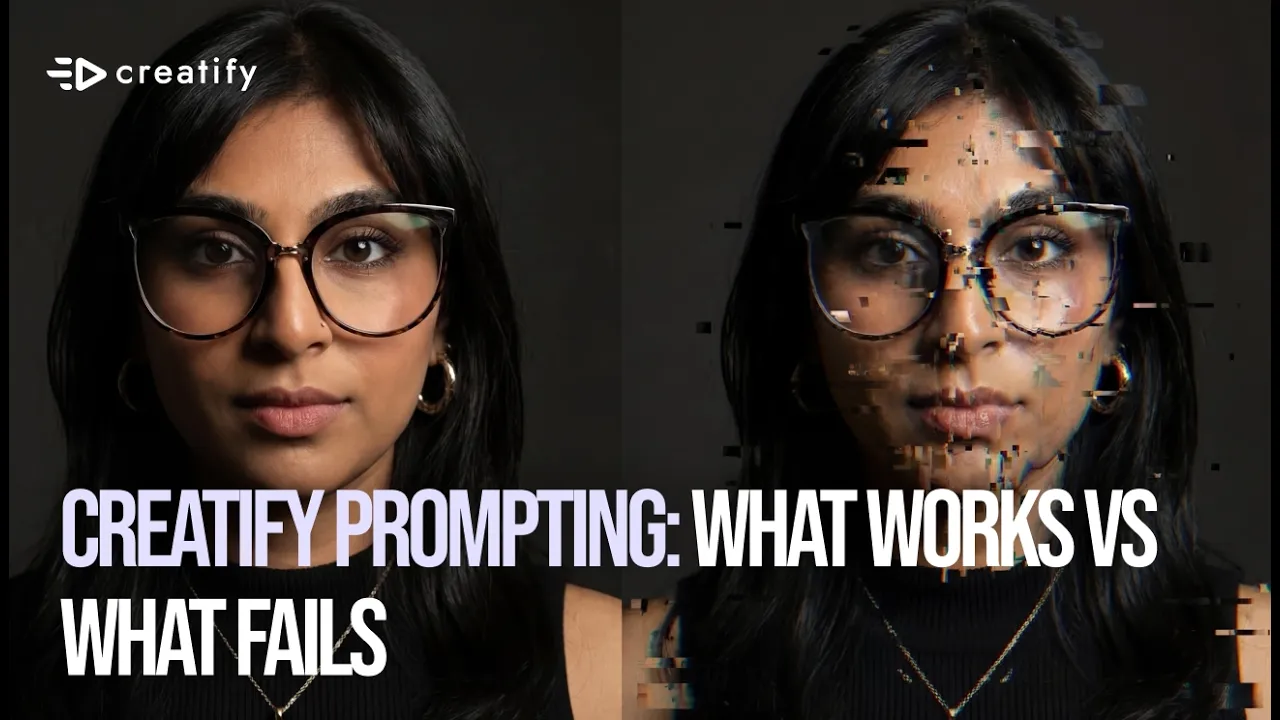
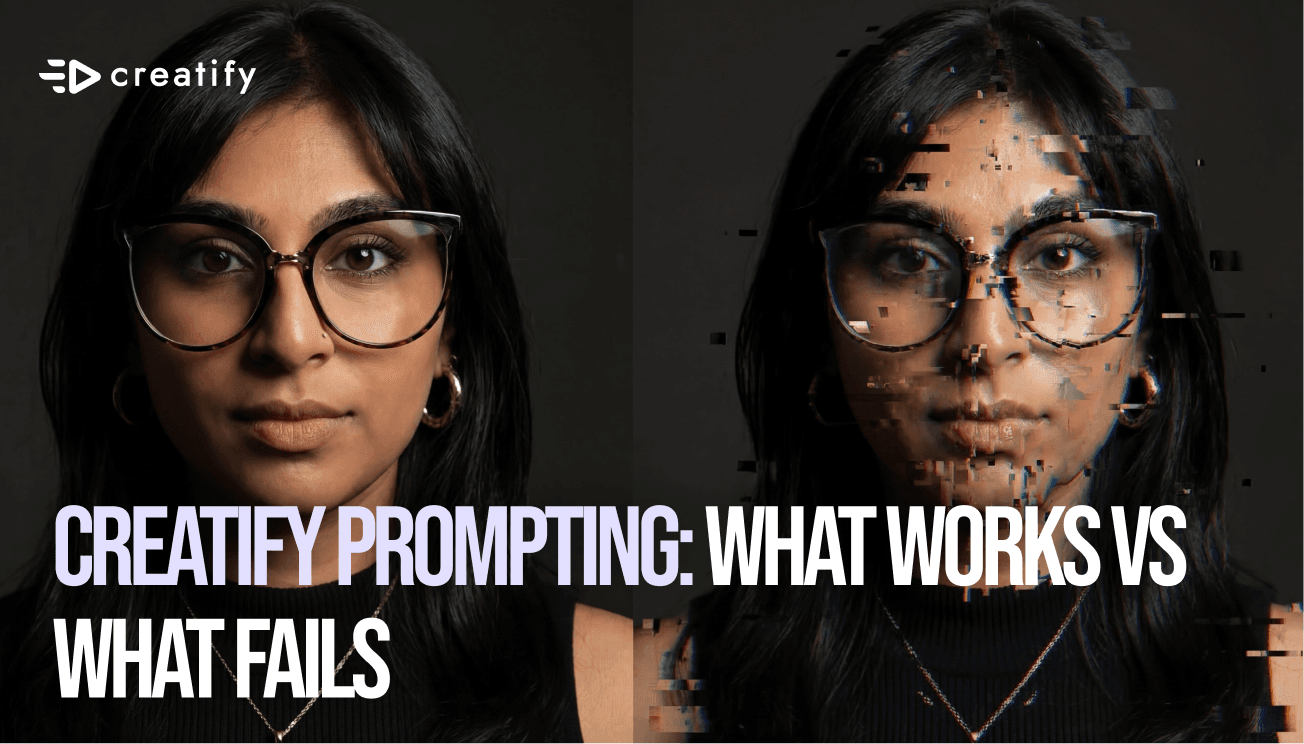
Creatify Prompting: What Works vs What Fails!
Creatify Prompting: What Works vs What Fails!

Creatify Team
SHARE


IN THIS ARTICLE
How to Prompt Better in Creatify for Higher Quality Ads | Creatify
Master the art of prompting in Creatify's asset generator. Learn the dos, don'ts, and the SCENE acronym to create stunning AI-generated images and videos for your ads.
How to prompt better in Creatify for higher quality ads
Prompting is a skill. And like any skill, there's a gap between "it works" and "it works well."
If you've ever typed something into Creatify's asset generator and gotten back a result that felt… off, the issue probably wasn't the tool. It was the prompt.
Think of it like ordering at a restaurant. Tell the waiter "I'd like some food" and you'll get something — but probably not what you had in mind. Ask for a medium rare steak with mashed potatoes, and now we're talking. AI prompting works the exact same way. The more specific you are, the better your results.
So let's break down exactly how to write prompts that produce consistent, ad-ready outputs in Creatify — for both image and video generation.
Image generation: vague vs. detailed prompts
Creatify's asset generator offers several image generation models, including Nano Banana Pro, GPT, Flux, and others. If you're looking for the most consistent, highest-quality outputs, Nano Banana Pro is the one to use. It handles references well and delivers reliable results across the board.
Now, what separates a good image prompt from a bad one? In short: specificity.
A vague prompt like "a hand holding a boba drink with glowing light" will give you something usable — but generic. It's missing the details that make an image feel intentional and ad-ready.
Compare that to: "A hand elegantly holding a tall glass of Thai milk tea boba against a soft pastel gradient background, pink to lavender to cream." Same concept, but the output is sharper, more polished, and far more usable in an actual campaign.
The dos and don'ts of image prompting
Here's where most people trip up — and how to avoid it.
Don't use contradictory terms. Phrases like "minimalist but cluttered" create confusion. Oxymorons force the AI to pick a direction, and the result usually lands somewhere awkward. Keep your descriptions internally consistent.
Do define your camera style. Specify whether you want a DSLR look, an iPhone aesthetic, or a studio-quality shot. This one detail alone can dramatically shift the mood and perceived quality of the image.
Do specify camera angles. Wide shot, bird's eye view, close-up — each angle tells a different story. Spell it out.
Do describe the feeling. Happy, moody, eerie, luxurious — the emotional tone of your image matters, and the model can respond to it when you name it.
Do control the lighting. Soft, glowy, dramatic, golden hour — lighting adjectives go a long way in shaping the final output.
Do use negative prompting. Creatify's asset generator lets you set guardrails for what not to include. This is one of the most underused features, and it makes a real difference in cleaning up your outputs.
We tested this live. A vague cocktail prompt — "a cocktail in a nice glass with colorful lighting in the background" — produced a decent image. But a detailed prompt — "Create a cinematic luxury cocktail ad featuring a deep ruby cosmopolitan in a crystal martini glass with condensation and a lime twist. Headlines reading 'Make the Night Yours' with refined subtext saying 'Crafted for Bold Conversations.' Vogue-style aesthetic." — produced something that looked ready to run as an ad immediately.
Video generation: models and what they're best at
Creatify currently offers several video generation models, including Kling, V3, and Sora. Each has its strengths.
Kling is the top contender right now for overall quality, especially when it comes to consistent character references. If you need people or characters that look right across multiple frames, Kling is the move.
V3 excels at motion-heavy tasks. If your concept involves a lot of movement, V3 handles that well — though Kling still edges it out on overall quality.
Sora does solid motion-based generation but falls short on character referencing compared to Kling or V3.
The dos and don'ts of video prompting
Don't prompt too many simultaneous actions. If you overload one prompt with multiple movements, you'll start seeing hallucinations — characters that look off, objects that don't behave. Stick to one or two primary movements per prompt.
Do be as detailed as possible. Just like with images, specificity is everything. A prompt like "a freshly-made cheeseburger on a kitchen counter" will get you a basic result. But it won't tell a story.
The SCENE acronym for better video prompts
To consistently write strong video prompts, try using an acronym that breaks the prompt into five clear components: SCENE.
S — Subject. What's the main focus? Example: a freshly-made gourmet cheeseburger.
C — Context. Where is it? What's the environment? Example: a modern kitchen or restaurant counter, warm evening lighting, shallow depth of field, background blur.
E — Expression. What's happening? For objects, this might be slow motion. For characters, define their physical expressions — smiling, focused, relaxed.
N — Nature. What's the mood and visual tone? Example: rich, indulgent, crave-worthy, premium feel, warm golden tones with high contrast.
E — Elements. What are the specific details? Example: toasted sesame bun, juicy grilled beef patty, melted cheddar, 4K ultra-real detail.
We tested both approaches side by side. The simple burger prompt gave us a clean pan around a burger on a table — functional, but flat. The SCENE-structured prompt delivered a cinematic shot with melting cheese and rising steam. It felt like an ad, not a demo.
Start experimenting
Prompting is an art. The more you practice structuring your inputs — whether for images or video — the more control you'll have over your outputs. Use Nano Banana Pro for images, Kling for video, and lean on the SCENE framework to get the most out of Creatify's asset generator.
If you want to go deeper on prompting strategies or have questions about specific use cases, reach out to the Creatify team. And if you found this helpful, subscribe to the channel for more tutorials.
How to Prompt Better in Creatify for Higher Quality Ads | Creatify
Master the art of prompting in Creatify's asset generator. Learn the dos, don'ts, and the SCENE acronym to create stunning AI-generated images and videos for your ads.
How to prompt better in Creatify for higher quality ads
Prompting is a skill. And like any skill, there's a gap between "it works" and "it works well."
If you've ever typed something into Creatify's asset generator and gotten back a result that felt… off, the issue probably wasn't the tool. It was the prompt.
Think of it like ordering at a restaurant. Tell the waiter "I'd like some food" and you'll get something — but probably not what you had in mind. Ask for a medium rare steak with mashed potatoes, and now we're talking. AI prompting works the exact same way. The more specific you are, the better your results.
So let's break down exactly how to write prompts that produce consistent, ad-ready outputs in Creatify — for both image and video generation.
Image generation: vague vs. detailed prompts
Creatify's asset generator offers several image generation models, including Nano Banana Pro, GPT, Flux, and others. If you're looking for the most consistent, highest-quality outputs, Nano Banana Pro is the one to use. It handles references well and delivers reliable results across the board.
Now, what separates a good image prompt from a bad one? In short: specificity.
A vague prompt like "a hand holding a boba drink with glowing light" will give you something usable — but generic. It's missing the details that make an image feel intentional and ad-ready.
Compare that to: "A hand elegantly holding a tall glass of Thai milk tea boba against a soft pastel gradient background, pink to lavender to cream." Same concept, but the output is sharper, more polished, and far more usable in an actual campaign.
The dos and don'ts of image prompting
Here's where most people trip up — and how to avoid it.
Don't use contradictory terms. Phrases like "minimalist but cluttered" create confusion. Oxymorons force the AI to pick a direction, and the result usually lands somewhere awkward. Keep your descriptions internally consistent.
Do define your camera style. Specify whether you want a DSLR look, an iPhone aesthetic, or a studio-quality shot. This one detail alone can dramatically shift the mood and perceived quality of the image.
Do specify camera angles. Wide shot, bird's eye view, close-up — each angle tells a different story. Spell it out.
Do describe the feeling. Happy, moody, eerie, luxurious — the emotional tone of your image matters, and the model can respond to it when you name it.
Do control the lighting. Soft, glowy, dramatic, golden hour — lighting adjectives go a long way in shaping the final output.
Do use negative prompting. Creatify's asset generator lets you set guardrails for what not to include. This is one of the most underused features, and it makes a real difference in cleaning up your outputs.
We tested this live. A vague cocktail prompt — "a cocktail in a nice glass with colorful lighting in the background" — produced a decent image. But a detailed prompt — "Create a cinematic luxury cocktail ad featuring a deep ruby cosmopolitan in a crystal martini glass with condensation and a lime twist. Headlines reading 'Make the Night Yours' with refined subtext saying 'Crafted for Bold Conversations.' Vogue-style aesthetic." — produced something that looked ready to run as an ad immediately.
Video generation: models and what they're best at
Creatify currently offers several video generation models, including Kling, V3, and Sora. Each has its strengths.
Kling is the top contender right now for overall quality, especially when it comes to consistent character references. If you need people or characters that look right across multiple frames, Kling is the move.
V3 excels at motion-heavy tasks. If your concept involves a lot of movement, V3 handles that well — though Kling still edges it out on overall quality.
Sora does solid motion-based generation but falls short on character referencing compared to Kling or V3.
The dos and don'ts of video prompting
Don't prompt too many simultaneous actions. If you overload one prompt with multiple movements, you'll start seeing hallucinations — characters that look off, objects that don't behave. Stick to one or two primary movements per prompt.
Do be as detailed as possible. Just like with images, specificity is everything. A prompt like "a freshly-made cheeseburger on a kitchen counter" will get you a basic result. But it won't tell a story.
The SCENE acronym for better video prompts
To consistently write strong video prompts, try using an acronym that breaks the prompt into five clear components: SCENE.
S — Subject. What's the main focus? Example: a freshly-made gourmet cheeseburger.
C — Context. Where is it? What's the environment? Example: a modern kitchen or restaurant counter, warm evening lighting, shallow depth of field, background blur.
E — Expression. What's happening? For objects, this might be slow motion. For characters, define their physical expressions — smiling, focused, relaxed.
N — Nature. What's the mood and visual tone? Example: rich, indulgent, crave-worthy, premium feel, warm golden tones with high contrast.
E — Elements. What are the specific details? Example: toasted sesame bun, juicy grilled beef patty, melted cheddar, 4K ultra-real detail.
We tested both approaches side by side. The simple burger prompt gave us a clean pan around a burger on a table — functional, but flat. The SCENE-structured prompt delivered a cinematic shot with melting cheese and rising steam. It felt like an ad, not a demo.
Start experimenting
Prompting is an art. The more you practice structuring your inputs — whether for images or video — the more control you'll have over your outputs. Use Nano Banana Pro for images, Kling for video, and lean on the SCENE framework to get the most out of Creatify's asset generator.
If you want to go deeper on prompting strategies or have questions about specific use cases, reach out to the Creatify team. And if you found this helpful, subscribe to the channel for more tutorials.

You might also like


Ready to speed up your marketing?
Test your new product ideas in minutes with AI-generated video ads

Ready to speed up your marketing?
Test your new product ideas in minutes with AI-generated video ads
Ready to speed up your marketing?
Test your new product ideas in minutes with AI-generated video ads
Ready to speed up your marketing?
Test your new product ideas in minutes with AI-generated video ads

Generate engaging video ads for your products
from any URL



Creatify Lab • Copyright © 2026
Language
English
Features
Tools
Generate engaging video ads for your products
from any URL
Creatify Lab • Copyright © 2026
Language
English
Features
Tools
Generate engaging video ads for your products
from any URL
Creatify Lab • Copyright © 2026
Language
English
Features
Tools
Use Cases
YouTube
Snapchat
Shopify
Create AI Avatar
OTT & CTV
Lead Generation
Generate engaging video ads for your products
from any URL
Creatify Lab • Copyright © 2026
Language
English
Features
Tools