Creatify Team
SHARE


IN THIS ARTICLE
Somewhere in your company, a senior employee explains the same process to every new hire. They've done it forty times. Each version gets a little shorter, a little more impatient, and a little less accurate as details drop from repetition fatigue. Training that lives in someone's head degrades every time it's transferred.
Most teams know they should record it. They just assume it means cameras, lighting, and editing software that takes a weekend to learn. That barrier disappeared years ago. The real one now is that nobody sat down and made the video.
This guide covers how to create a training video from learning objective to published asset. Narrating yourself takes a microphone and a quiet room. With AI voiceover or an AI avatar presenter, you won't even need that.
Define the learning objective before you make the training video
The most common mistake when making a training video is opening the recording software first.
Before you touch any tool, answer three questions:
What does the learner need to be able to do after watching this?
Not "understand" or "be aware of." What specific task, decision, or process should they be able to perform? "Configure a new user account in the admin panel" is a training objective. "Learn about the platform" is not.
Who is this for?
New hires who've never seen the product? Experienced team members learning a new feature? External customers onboarding themselves? The audience determines the depth, the vocabulary, and the assumptions you can make.
Where does this video fit in the broader learning flow?
Is it standalone, or part of a sequence? Does it replace a live session, supplement written documentation, or serve as a reference people return to? UCSD's training design framework recommends defining the video's role in the learning plan before production begins, because a video that tries to do everything usually teaches nothing well.

Get specific on the objective. One video, one topic, one skill. If the subject has five steps, consider making five short videos rather than one long one. Modular training content is easier to produce, easier to update, and easier for learners to find when they need it.
Choose the right training video format
Not every training video needs a person on screen. The format should match what the learner needs to see.
Screen walkthrough: Best for software training, tool configuration, and process demonstrations. Record your screen while narrating the steps. The learner sees exactly what they'll see when they do it themselves. This is the most common training video format and the easiest to produce without a crew.
Slide-based explainer: Best for concepts, policies, frameworks, and anything where the learner needs to understand "why" before "how." Build a slide deck with clear visuals and record narration over it. Works well for compliance training, onboarding overviews, and conceptual introductions.
Demo video: Best for physical products, hardware setup, or anything that requires showing a real-world object or environment. This is the one format that might benefit from a camera, but even here, a phone on a tripod with decent lighting is sufficient. No crew needed.
Process explainer with diagrams: Best for workflows, decision trees, and multi-step processes where the sequence matters more than the interface. Use simple diagrams, flowcharts, or animated graphics to walk through the process.
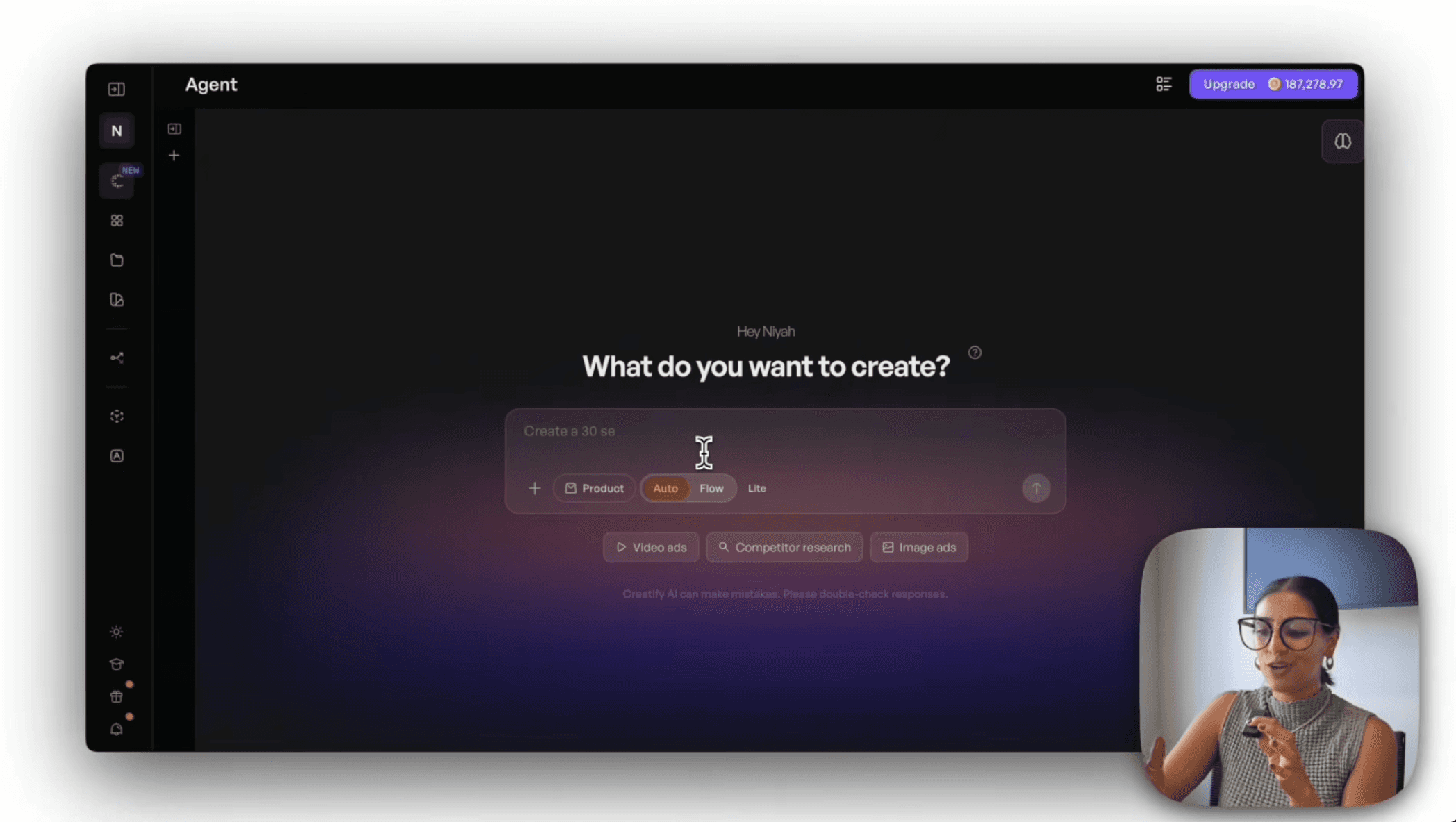
AI avatar presenter: Best when you want a human-looking presenter without putting anyone on camera. AI avatars can deliver scripted narration with natural lip sync and body movement, which adds a personal quality to training content without the logistics of filming. More on this in the AI section below.
ECG Productions' guide to training video structure recommends matching the format to the complexity of the content. Procedural training (how to do something) works best as screen recordings or demos. Conceptual training (why something matters) works better as narrated slides or explainers. Mixing the two in one video usually weakens both.
Read also: ChatGPT prompts for social media marketing in 2026
Write a training video script that sounds human
A training video script is not a documentation page read aloud. It's spoken language, which means short sentences, one idea at a time, and direct address.
Structure every script the same way:
Hook (5 to 10 seconds): Tell the learner what they'll be able to do after watching. "By the end of this video, you'll know how to set up automated reporting in three minutes." This sets expectations and gives them a reason to keep watching.
Explanation (the core content): Walk through the process, concept, or skill step by step. Use the simplest language that's still accurate. If a term needs defining, define it the first time and move on. Don't repeat the definition every time it comes up.
Demonstration: Show the thing. If it's a screen recording, perform the action while narrating. If it's a slide explainer, use a visual example. "Here's what it looks like when you click 'Create New Report' and select the date range" is more useful than "navigate to the reporting section."
Recap (10 to 15 seconds): Summarize the key steps or takeaways in 2 to 3 sentences. Repetition at the end reinforces retention.
Next step: Tell the learner what to do next. Try it themselves, watch the next video in the series, consult a resource, or contact someone for help.
A few scripting principles that save time in production:
Write for the ear, not the eye. Read every line aloud before recording. If you stumble on a phrase, simplify it. If a sentence has more than one comma, split it into two sentences.
Avoid filler phrases. "So basically what we're going to do here is" adds eight words and zero information. Start with the action: "Click 'Settings,' then select 'Integrations.'"
Name what's on screen. Don't say "click here" or "as you can see." Say "click the blue 'Save' button in the top right corner." Learners may not be watching full-screen, and they may be trying to follow along on their own device.
Record with minimal equipment (if you're narrating yourself)
This section applies if you're recording your own voice and screen. If you're using AI-generated narration or an AI avatar to deliver the script, you can skip straight to the AI section below. No microphone, no recording environment, no retakes needed.
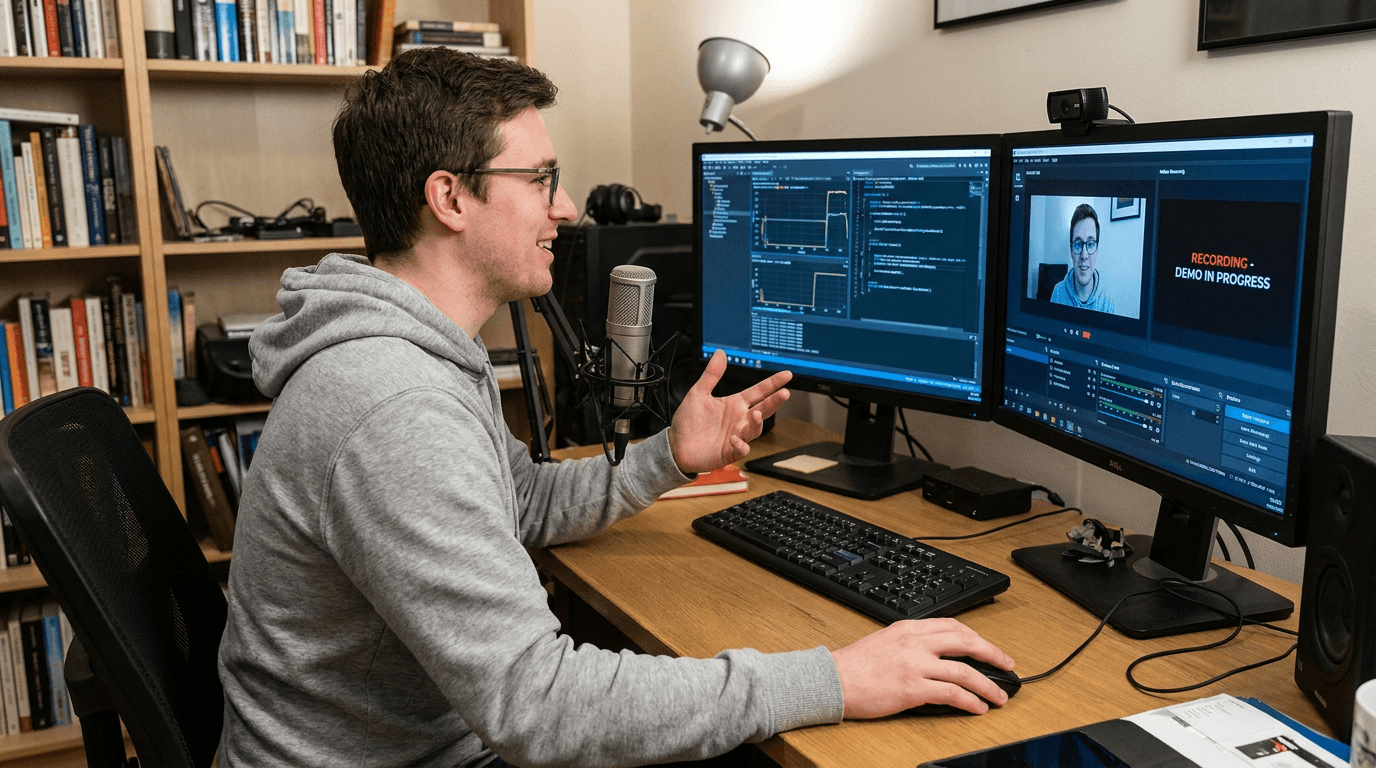
For self-narrated training videos, you don't need a studio. You need a quiet room, a clear microphone, and recording software. That's the entire production stack.
Microphone: A $50 to $100 USB microphone (like an Audio-Technica ATR2100x or a Blue Yeti) will produce clean audio. The built-in laptop microphone will not. Audio quality is the single biggest factor separating professional-sounding training videos from amateur ones. If you invest in one thing, invest here.
Screen recording: OBS Studio (free), Loom, or any screen capture tool that records your screen and microphone simultaneously. For slide-based content, record the presentation in slideshow mode with narration.
Environment: A small room with soft surfaces (carpet, curtains, upholstered furniture) reduces echo. Close the window. Turn off notifications. Put your phone on silent. These take 30 seconds and prevent the most common audio issues.
Recording approach: Record in sections, not in one continuous take. If you make a mistake in step 3, pause, re-record step 3, and keep going. You'll stitch the sections together in editing. Trying to capture a perfect 10-minute take from start to finish wastes hours and produces worse results than recording in focused segments.
Pace your speech. Slightly slower than conversational feels right on playback. Pause briefly between steps so the learner can absorb each one. If you're demonstrating a software process, let the screen action complete before narrating the next step. Overlapping narration and screen movement is one of the fastest ways to confuse a viewer.
Use AI to create training videos faster
AI tools can significantly reduce the time it takes to make a training video, and in some workflows, they eliminate the need for recording equipment entirely. If you combine AI script drafting, AI-generated narration, and an AI avatar presenter, the entire production happens on screen. No microphone, no quiet room, no retakes. You write the script (or have AI draft it), feed it to an AI voice and avatar, review the output, and publish.
That said, AI works best as an accelerant for a human-led process, not as a replacement for subject-matter expertise. The review step is where training videos succeed or fail regardless of how they're produced.
Script drafting: Use ChatGPT or Claude to generate a first draft of the script from your outline, notes, or documentation. This cuts blank-page time dramatically. But always have the subject-matter expert review for accuracy, terminology, and completeness before recording. AI will confidently write incorrect procedures if the input documentation is outdated or ambiguous.
AI narration: Text-to-speech tools can generate natural-sounding voiceovers in dozens of languages and accents. This solves the problem of narration quality for teams where no one is comfortable speaking on camera or recording audio. The voice won't have your team's personality, but it will be clear, consistent, and free of ums and restarts.
AI avatar presenters: For training videos that benefit from a visible presenter but where filming isn't practical, AI avatar tools can generate a realistic human presenter from a script. Platforms like Creatify offer 1,500+ AI avatars with natural lip sync across 75+ languages, which makes them practical for multilingual training programs or organizations that need to create presenter-style content without coordinating filming schedules. The avatar delivers the script with natural body movement and facial expressions, which adds engagement that a narrated slide deck alone doesn't provide.
Automated captioning: Most editing tools and hosting platforms now generate captions automatically. These are good starting points but always need human review. Automated captions regularly miss technical terms, proper nouns, and domain-specific vocabulary, which are exactly the words that matter most in training content.
AI-generated visuals: Need a diagram, flowchart, or explanatory graphic? AI image generators can produce supporting visuals faster than designing them from scratch. Useful for conceptual explainers where custom illustrations would normally require a designer.
The golden rule for AI in training video production: use it to accelerate the parts that don't require domain expertise (drafting, narration, captioning, visuals), then apply human judgment to everything that does (accuracy, terminology, process correctness, compliance).
Read also: How to create a video from photos using AI
Make your training video accessible from the start
Accessibility is not a polish step you add after production. It's a structural requirement that affects how you script, record, and publish.
Captions are mandatory, not optional. W3C's Web Accessibility Initiative is clear: captions are a basic requirement for accessible media. They serve learners who are deaf or hard of hearing, but they also help anyone watching in a noisy environment, in a language they're still learning, or when they can't play audio. Section 508 guidance specifies that captions should be synchronized, accurate, and readable, and that they should include relevant non-speech audio (like system alerts or notification sounds) when those sounds carry meaning.
Transcripts are a separate deliverable. W3C recommends providing a transcript alongside the video, not just captions embedded in it. Transcripts let learners search for specific steps, review content at their own pace, and access the material without watching the video at all. They also improve discoverability if the training content is hosted on an internal wiki or knowledge base with search functionality.
Speak what you show. Don't rely on visuals alone to convey information. If you highlight a button on screen, say its name. If a diagram shows a workflow, narrate the sequence. Learners who can't see the screen (or are listening while doing something else) need the audio to stand on its own.
Keep on-screen text readable. Use high-contrast text, large enough font sizes (at least 24pt for slide content shown in video), and sufficient display duration. The University of Illinois accessibility guidelines recommend against relying on color alone to convey meaning, since some learners may not perceive color differences.
Building accessibility into the production process from the start is faster and cheaper than retrofitting it afterward. If you script with narration clarity in mind, record with captioning in mind, and publish with transcripts included, accessibility stops being extra work and becomes part of the standard workflow.
Edit training video for clarity, then publish where it matters
Editing a training video is about removing friction, not adding polish. Every edit should make the content easier to follow.
Cut dead air. Remove long pauses, false starts, and "um" fillers. These are normal in speech but distracting in training content.
Tighten the intro. If the first 15 seconds don't tell the learner what they'll gain, they'll click away. Get to the value immediately.
Remove repetition. If you explained something clearly once, don't explain it again in slightly different words. Training content should be concise. Learners can rewind if they need to hear something again.
Add visual clarity. Use zoom-ins, highlights, or callouts to draw attention to the specific part of the screen you're discussing. A full-screen recording where the cursor is the only indicator of what to look at makes the learner work too hard to follow.
Check pacing. Watch the finished edit at 1x speed. If any section feels slow, it is. If any transition feels jarring, smooth it or add a brief visual bridge.
Once the edit is final, publish where learners will actually use it. The platform depends on your organization:
LMS (Learning Management System): Best for structured training programs with completion tracking, quizzes, and certifications. Upload the video as part of a course module.
Internal knowledge base or wiki: Best for reference training that people search for when they need help with a specific task. Tag the video with relevant keywords and pair it with the transcript.
Intranet or team communication tools: Best for informal training, quick updates, and process changes that the whole team needs to see.
Help center or customer-facing documentation: Best for customer education, onboarding, and self-service support.
The goal is to put the video where the learner already goes when they have the problem the video solves. Training content that lives in a folder nobody opens might as well not exist.
Measure whether it actually worked
A training video's success is defined by whether learners can do the thing the video taught them. View count alone doesn't tell you that.
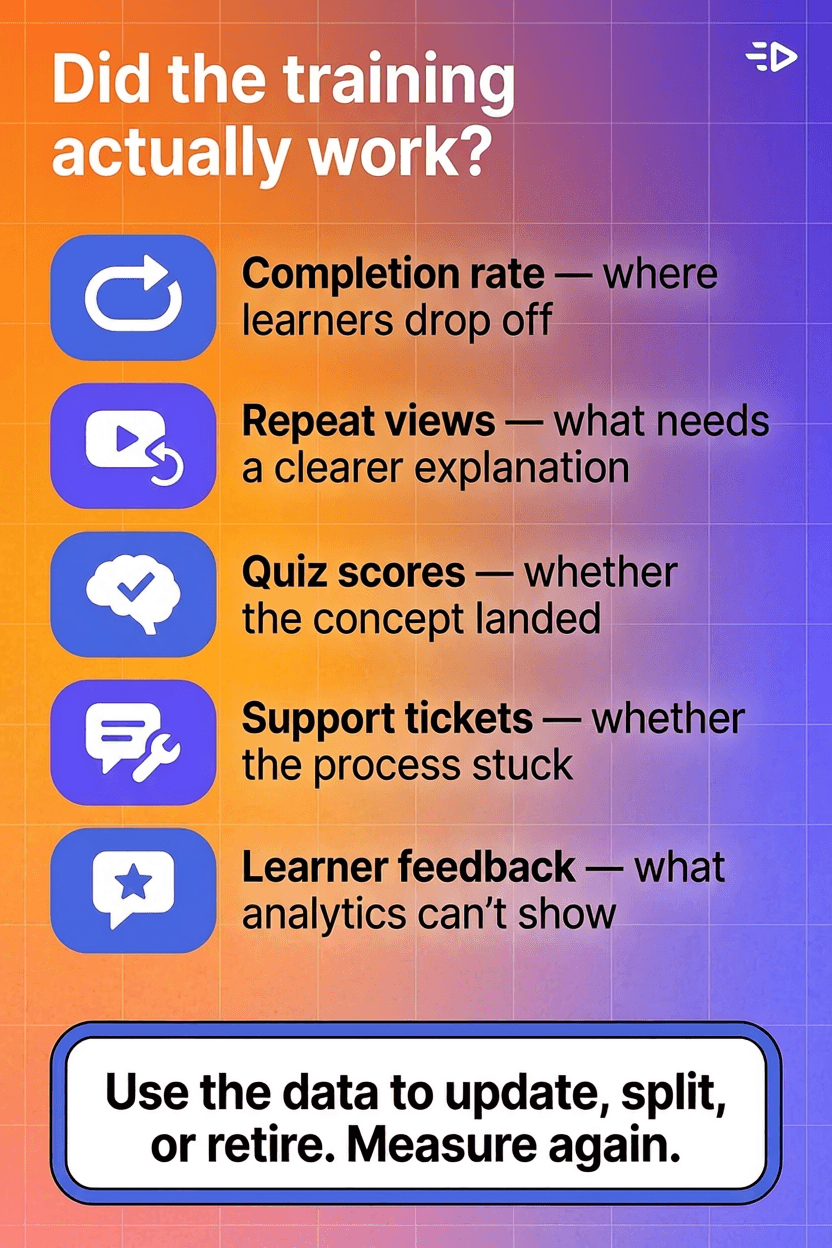
Completion rate: What percentage of learners finish the video? If most people drop off at the 2-minute mark of a 6-minute video, the content after minute 2 has a problem. Either the pacing drags, the relevance drops, or the video tries to cover too much in one asset.
Repeat views on specific sections: If learners keep rewinding to the same 30-second segment, that section might need a clearer explanation, a better visual, or its own standalone video.
Quiz or assessment results: If the training video is part of a structured program, tie quiz scores to the content. Low scores on questions related to a specific video indicate that the video didn't teach the concept effectively.
Support ticket reduction: If the training video covers a process that generates support requests, measure whether ticket volume drops after the video is published and promoted. This is the most direct measure of training effectiveness for procedural content.
Learner feedback: Ask. A 2-question survey ("Did this video help you complete the task?" and "What was unclear?") gives you signal that analytics alone can't provide.
Use the data to iterate. Update the sections that aren't landing. Split videos that try to cover too much. Retire content that's outdated. Training videos aren't a "set it and forget it" asset. Treat them like product documentation: keep them current, keep them useful, and keep measuring whether they're working.
Read also: How to create a social media marketing plan that works
Frequently Asked Questions
How do I create a training video without any equipment?
If you're using AI-generated narration and an AI avatar presenter, you don't need any recording equipment at all. Write the script, feed it to an AI voice and avatar tool, review the output, and publish. If you prefer to narrate yourself, the minimum setup is a computer, a screen recording tool (OBS Studio is free), and a USB microphone in the $50 to $100 range. No camera, lighting, or studio required either way.
What is the best format for a training video?
It depends on the content. Screen walkthroughs work best for software and process training. Slide-based explainers work best for concepts, policies, and frameworks. Demo videos work best for physical products or hardware. AI avatar presenters work well when you want a visible speaker without filming anyone. Choose the format based on what the learner needs to see, not what's easiest to produce.
How long should a training video be?
Keep each video focused on one topic or skill. For most procedural training, 3 to 7 minutes is the target range. Conceptual training can run slightly longer (up to 10 minutes) if the pacing stays tight. If a topic requires more than 10 minutes, split it into multiple videos. Shorter, modular videos are easier to produce, easier to update, and easier for learners to search and revisit.
Can I use AI to make training videos?
Yes. AI tools can draft scripts, generate voiceover narration, create AI avatar presenters, auto-generate captions, and produce supporting visuals. They significantly reduce production time for teams without dedicated video resources. The important caveat: always have a subject-matter expert review AI-generated content for accuracy before publishing. AI is strong at drafting and production tasks but unreliable for domain-specific accuracy without human oversight.
How do I make training videos accessible?
Build accessibility into the production process from the start. Include synchronized captions on every video (auto-generated captions need human review for accuracy). Provide a transcript as a separate downloadable asset. Narrate everything you show on screen so the audio track stands alone. Use high-contrast, readable text in any on-screen graphics. Follow W3C WAI and Section 508 guidelines for media accessibility.
Where should I host training videos?
Host them where learners already go when they need help. For internal training, that's your LMS, internal knowledge base, or intranet. For customer training, that's your help center, documentation site, or product onboarding flow. The platform matters less than the placement. A training video buried in a file folder nobody opens won't help anyone, regardless of how well it's produced.
How do I measure if a training video is effective?
Track completion rate (are learners finishing it?), repeat views on specific sections (are they struggling with a particular step?), assessment scores (can they demonstrate the skill?), and support ticket reduction (did the video reduce questions about this topic?). View count alone doesn't tell you whether the video taught anyone anything. Tie measurement back to the original learning objective.
How often should training videos be updated?
Update training videos whenever the underlying process, tool, or policy changes. For software training, this often means updating after major product releases. For compliance or policy training, review annually at minimum. Outdated training content is worse than no training content because it teaches the wrong thing confidently. Treat training videos like product documentation: keep them current or take them down.
Somewhere in your company, a senior employee explains the same process to every new hire. They've done it forty times. Each version gets a little shorter, a little more impatient, and a little less accurate as details drop from repetition fatigue. Training that lives in someone's head degrades every time it's transferred.
Most teams know they should record it. They just assume it means cameras, lighting, and editing software that takes a weekend to learn. That barrier disappeared years ago. The real one now is that nobody sat down and made the video.
This guide covers how to create a training video from learning objective to published asset. Narrating yourself takes a microphone and a quiet room. With AI voiceover or an AI avatar presenter, you won't even need that.
Define the learning objective before you make the training video
The most common mistake when making a training video is opening the recording software first.
Before you touch any tool, answer three questions:
What does the learner need to be able to do after watching this?
Not "understand" or "be aware of." What specific task, decision, or process should they be able to perform? "Configure a new user account in the admin panel" is a training objective. "Learn about the platform" is not.
Who is this for?
New hires who've never seen the product? Experienced team members learning a new feature? External customers onboarding themselves? The audience determines the depth, the vocabulary, and the assumptions you can make.
Where does this video fit in the broader learning flow?
Is it standalone, or part of a sequence? Does it replace a live session, supplement written documentation, or serve as a reference people return to? UCSD's training design framework recommends defining the video's role in the learning plan before production begins, because a video that tries to do everything usually teaches nothing well.
Get specific on the objective. One video, one topic, one skill. If the subject has five steps, consider making five short videos rather than one long one. Modular training content is easier to produce, easier to update, and easier for learners to find when they need it.
Choose the right training video format
Not every training video needs a person on screen. The format should match what the learner needs to see.
Screen walkthrough: Best for software training, tool configuration, and process demonstrations. Record your screen while narrating the steps. The learner sees exactly what they'll see when they do it themselves. This is the most common training video format and the easiest to produce without a crew.
Slide-based explainer: Best for concepts, policies, frameworks, and anything where the learner needs to understand "why" before "how." Build a slide deck with clear visuals and record narration over it. Works well for compliance training, onboarding overviews, and conceptual introductions.
Demo video: Best for physical products, hardware setup, or anything that requires showing a real-world object or environment. This is the one format that might benefit from a camera, but even here, a phone on a tripod with decent lighting is sufficient. No crew needed.
Process explainer with diagrams: Best for workflows, decision trees, and multi-step processes where the sequence matters more than the interface. Use simple diagrams, flowcharts, or animated graphics to walk through the process.
AI avatar presenter: Best when you want a human-looking presenter without putting anyone on camera. AI avatars can deliver scripted narration with natural lip sync and body movement, which adds a personal quality to training content without the logistics of filming. More on this in the AI section below.
ECG Productions' guide to training video structure recommends matching the format to the complexity of the content. Procedural training (how to do something) works best as screen recordings or demos. Conceptual training (why something matters) works better as narrated slides or explainers. Mixing the two in one video usually weakens both.
Read also: ChatGPT prompts for social media marketing in 2026
Write a training video script that sounds human
A training video script is not a documentation page read aloud. It's spoken language, which means short sentences, one idea at a time, and direct address.
Structure every script the same way:
Hook (5 to 10 seconds): Tell the learner what they'll be able to do after watching. "By the end of this video, you'll know how to set up automated reporting in three minutes." This sets expectations and gives them a reason to keep watching.
Explanation (the core content): Walk through the process, concept, or skill step by step. Use the simplest language that's still accurate. If a term needs defining, define it the first time and move on. Don't repeat the definition every time it comes up.
Demonstration: Show the thing. If it's a screen recording, perform the action while narrating. If it's a slide explainer, use a visual example. "Here's what it looks like when you click 'Create New Report' and select the date range" is more useful than "navigate to the reporting section."
Recap (10 to 15 seconds): Summarize the key steps or takeaways in 2 to 3 sentences. Repetition at the end reinforces retention.
Next step: Tell the learner what to do next. Try it themselves, watch the next video in the series, consult a resource, or contact someone for help.
A few scripting principles that save time in production:
Write for the ear, not the eye. Read every line aloud before recording. If you stumble on a phrase, simplify it. If a sentence has more than one comma, split it into two sentences.
Avoid filler phrases. "So basically what we're going to do here is" adds eight words and zero information. Start with the action: "Click 'Settings,' then select 'Integrations.'"
Name what's on screen. Don't say "click here" or "as you can see." Say "click the blue 'Save' button in the top right corner." Learners may not be watching full-screen, and they may be trying to follow along on their own device.
Record with minimal equipment (if you're narrating yourself)
This section applies if you're recording your own voice and screen. If you're using AI-generated narration or an AI avatar to deliver the script, you can skip straight to the AI section below. No microphone, no recording environment, no retakes needed.
For self-narrated training videos, you don't need a studio. You need a quiet room, a clear microphone, and recording software. That's the entire production stack.
Microphone: A $50 to $100 USB microphone (like an Audio-Technica ATR2100x or a Blue Yeti) will produce clean audio. The built-in laptop microphone will not. Audio quality is the single biggest factor separating professional-sounding training videos from amateur ones. If you invest in one thing, invest here.
Screen recording: OBS Studio (free), Loom, or any screen capture tool that records your screen and microphone simultaneously. For slide-based content, record the presentation in slideshow mode with narration.
Environment: A small room with soft surfaces (carpet, curtains, upholstered furniture) reduces echo. Close the window. Turn off notifications. Put your phone on silent. These take 30 seconds and prevent the most common audio issues.
Recording approach: Record in sections, not in one continuous take. If you make a mistake in step 3, pause, re-record step 3, and keep going. You'll stitch the sections together in editing. Trying to capture a perfect 10-minute take from start to finish wastes hours and produces worse results than recording in focused segments.
Pace your speech. Slightly slower than conversational feels right on playback. Pause briefly between steps so the learner can absorb each one. If you're demonstrating a software process, let the screen action complete before narrating the next step. Overlapping narration and screen movement is one of the fastest ways to confuse a viewer.
Use AI to create training videos faster
AI tools can significantly reduce the time it takes to make a training video, and in some workflows, they eliminate the need for recording equipment entirely. If you combine AI script drafting, AI-generated narration, and an AI avatar presenter, the entire production happens on screen. No microphone, no quiet room, no retakes. You write the script (or have AI draft it), feed it to an AI voice and avatar, review the output, and publish.
That said, AI works best as an accelerant for a human-led process, not as a replacement for subject-matter expertise. The review step is where training videos succeed or fail regardless of how they're produced.
Script drafting: Use ChatGPT or Claude to generate a first draft of the script from your outline, notes, or documentation. This cuts blank-page time dramatically. But always have the subject-matter expert review for accuracy, terminology, and completeness before recording. AI will confidently write incorrect procedures if the input documentation is outdated or ambiguous.
AI narration: Text-to-speech tools can generate natural-sounding voiceovers in dozens of languages and accents. This solves the problem of narration quality for teams where no one is comfortable speaking on camera or recording audio. The voice won't have your team's personality, but it will be clear, consistent, and free of ums and restarts.
AI avatar presenters: For training videos that benefit from a visible presenter but where filming isn't practical, AI avatar tools can generate a realistic human presenter from a script. Platforms like Creatify offer 1,500+ AI avatars with natural lip sync across 75+ languages, which makes them practical for multilingual training programs or organizations that need to create presenter-style content without coordinating filming schedules. The avatar delivers the script with natural body movement and facial expressions, which adds engagement that a narrated slide deck alone doesn't provide.
Automated captioning: Most editing tools and hosting platforms now generate captions automatically. These are good starting points but always need human review. Automated captions regularly miss technical terms, proper nouns, and domain-specific vocabulary, which are exactly the words that matter most in training content.
AI-generated visuals: Need a diagram, flowchart, or explanatory graphic? AI image generators can produce supporting visuals faster than designing them from scratch. Useful for conceptual explainers where custom illustrations would normally require a designer.
The golden rule for AI in training video production: use it to accelerate the parts that don't require domain expertise (drafting, narration, captioning, visuals), then apply human judgment to everything that does (accuracy, terminology, process correctness, compliance).
Read also: How to create a video from photos using AI
Make your training video accessible from the start
Accessibility is not a polish step you add after production. It's a structural requirement that affects how you script, record, and publish.
Captions are mandatory, not optional. W3C's Web Accessibility Initiative is clear: captions are a basic requirement for accessible media. They serve learners who are deaf or hard of hearing, but they also help anyone watching in a noisy environment, in a language they're still learning, or when they can't play audio. Section 508 guidance specifies that captions should be synchronized, accurate, and readable, and that they should include relevant non-speech audio (like system alerts or notification sounds) when those sounds carry meaning.
Transcripts are a separate deliverable. W3C recommends providing a transcript alongside the video, not just captions embedded in it. Transcripts let learners search for specific steps, review content at their own pace, and access the material without watching the video at all. They also improve discoverability if the training content is hosted on an internal wiki or knowledge base with search functionality.
Speak what you show. Don't rely on visuals alone to convey information. If you highlight a button on screen, say its name. If a diagram shows a workflow, narrate the sequence. Learners who can't see the screen (or are listening while doing something else) need the audio to stand on its own.
Keep on-screen text readable. Use high-contrast text, large enough font sizes (at least 24pt for slide content shown in video), and sufficient display duration. The University of Illinois accessibility guidelines recommend against relying on color alone to convey meaning, since some learners may not perceive color differences.
Building accessibility into the production process from the start is faster and cheaper than retrofitting it afterward. If you script with narration clarity in mind, record with captioning in mind, and publish with transcripts included, accessibility stops being extra work and becomes part of the standard workflow.
Edit training video for clarity, then publish where it matters
Editing a training video is about removing friction, not adding polish. Every edit should make the content easier to follow.
Cut dead air. Remove long pauses, false starts, and "um" fillers. These are normal in speech but distracting in training content.
Tighten the intro. If the first 15 seconds don't tell the learner what they'll gain, they'll click away. Get to the value immediately.
Remove repetition. If you explained something clearly once, don't explain it again in slightly different words. Training content should be concise. Learners can rewind if they need to hear something again.
Add visual clarity. Use zoom-ins, highlights, or callouts to draw attention to the specific part of the screen you're discussing. A full-screen recording where the cursor is the only indicator of what to look at makes the learner work too hard to follow.
Check pacing. Watch the finished edit at 1x speed. If any section feels slow, it is. If any transition feels jarring, smooth it or add a brief visual bridge.
Once the edit is final, publish where learners will actually use it. The platform depends on your organization:
LMS (Learning Management System): Best for structured training programs with completion tracking, quizzes, and certifications. Upload the video as part of a course module.
Internal knowledge base or wiki: Best for reference training that people search for when they need help with a specific task. Tag the video with relevant keywords and pair it with the transcript.
Intranet or team communication tools: Best for informal training, quick updates, and process changes that the whole team needs to see.
Help center or customer-facing documentation: Best for customer education, onboarding, and self-service support.
The goal is to put the video where the learner already goes when they have the problem the video solves. Training content that lives in a folder nobody opens might as well not exist.
Measure whether it actually worked
A training video's success is defined by whether learners can do the thing the video taught them. View count alone doesn't tell you that.
Completion rate: What percentage of learners finish the video? If most people drop off at the 2-minute mark of a 6-minute video, the content after minute 2 has a problem. Either the pacing drags, the relevance drops, or the video tries to cover too much in one asset.
Repeat views on specific sections: If learners keep rewinding to the same 30-second segment, that section might need a clearer explanation, a better visual, or its own standalone video.
Quiz or assessment results: If the training video is part of a structured program, tie quiz scores to the content. Low scores on questions related to a specific video indicate that the video didn't teach the concept effectively.
Support ticket reduction: If the training video covers a process that generates support requests, measure whether ticket volume drops after the video is published and promoted. This is the most direct measure of training effectiveness for procedural content.
Learner feedback: Ask. A 2-question survey ("Did this video help you complete the task?" and "What was unclear?") gives you signal that analytics alone can't provide.
Use the data to iterate. Update the sections that aren't landing. Split videos that try to cover too much. Retire content that's outdated. Training videos aren't a "set it and forget it" asset. Treat them like product documentation: keep them current, keep them useful, and keep measuring whether they're working.
Read also: How to create a social media marketing plan that works
Frequently Asked Questions
How do I create a training video without any equipment?
If you're using AI-generated narration and an AI avatar presenter, you don't need any recording equipment at all. Write the script, feed it to an AI voice and avatar tool, review the output, and publish. If you prefer to narrate yourself, the minimum setup is a computer, a screen recording tool (OBS Studio is free), and a USB microphone in the $50 to $100 range. No camera, lighting, or studio required either way.
What is the best format for a training video?
It depends on the content. Screen walkthroughs work best for software and process training. Slide-based explainers work best for concepts, policies, and frameworks. Demo videos work best for physical products or hardware. AI avatar presenters work well when you want a visible speaker without filming anyone. Choose the format based on what the learner needs to see, not what's easiest to produce.
How long should a training video be?
Keep each video focused on one topic or skill. For most procedural training, 3 to 7 minutes is the target range. Conceptual training can run slightly longer (up to 10 minutes) if the pacing stays tight. If a topic requires more than 10 minutes, split it into multiple videos. Shorter, modular videos are easier to produce, easier to update, and easier for learners to search and revisit.
Can I use AI to make training videos?
Yes. AI tools can draft scripts, generate voiceover narration, create AI avatar presenters, auto-generate captions, and produce supporting visuals. They significantly reduce production time for teams without dedicated video resources. The important caveat: always have a subject-matter expert review AI-generated content for accuracy before publishing. AI is strong at drafting and production tasks but unreliable for domain-specific accuracy without human oversight.
How do I make training videos accessible?
Build accessibility into the production process from the start. Include synchronized captions on every video (auto-generated captions need human review for accuracy). Provide a transcript as a separate downloadable asset. Narrate everything you show on screen so the audio track stands alone. Use high-contrast, readable text in any on-screen graphics. Follow W3C WAI and Section 508 guidelines for media accessibility.
Where should I host training videos?
Host them where learners already go when they need help. For internal training, that's your LMS, internal knowledge base, or intranet. For customer training, that's your help center, documentation site, or product onboarding flow. The platform matters less than the placement. A training video buried in a file folder nobody opens won't help anyone, regardless of how well it's produced.
How do I measure if a training video is effective?
Track completion rate (are learners finishing it?), repeat views on specific sections (are they struggling with a particular step?), assessment scores (can they demonstrate the skill?), and support ticket reduction (did the video reduce questions about this topic?). View count alone doesn't tell you whether the video taught anyone anything. Tie measurement back to the original learning objective.
How often should training videos be updated?
Update training videos whenever the underlying process, tool, or policy changes. For software training, this often means updating after major product releases. For compliance or policy training, review annually at minimum. Outdated training content is worse than no training content because it teaches the wrong thing confidently. Treat training videos like product documentation: keep them current or take them down.