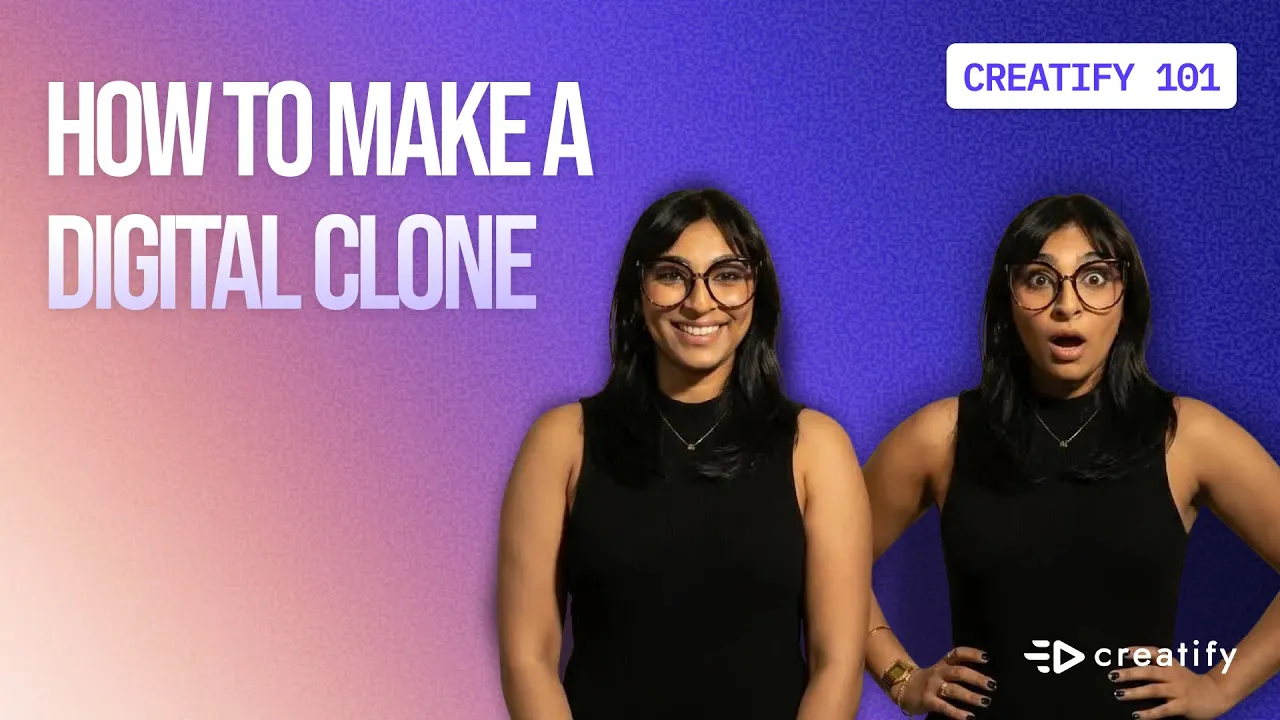
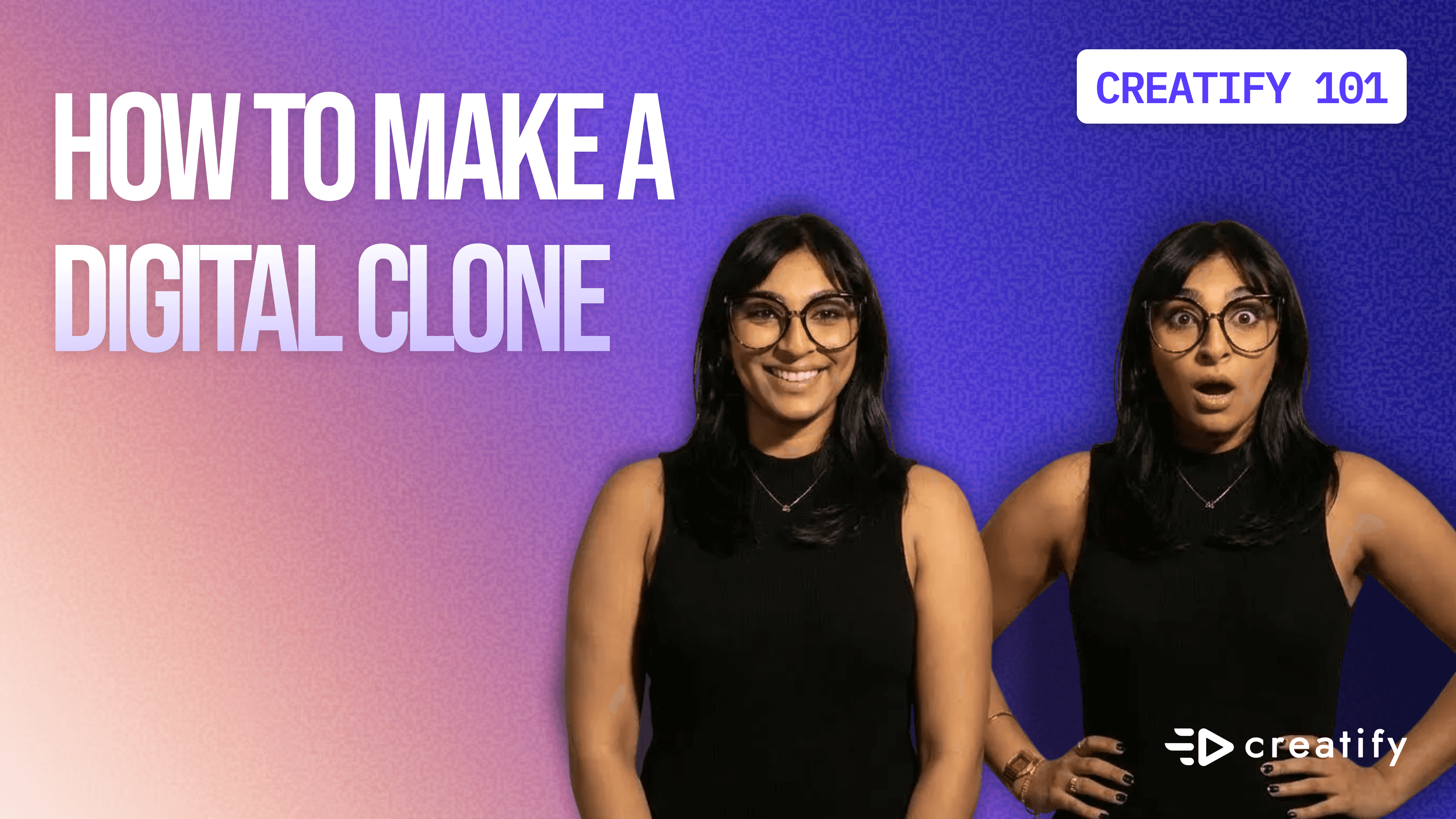
How to Create Your Digital Clone in Creatify
How to Create Your Digital Clone in Creatify
Creatify Team
SHARE


IN THIS ARTICLE
How to create a digital twin avatar in Creatify
Creating content at scale usually means choosing between quality and speed. Digital clones change that equation. Instead of filming yourself dozens of times for different campaigns, you can create an AI avatar from a single photo and generate unlimited videos.
Here's exactly how to build your digital clone in Creatify and use it for any content you need.
Why use a digital twin instead of regular avatars?
Creatify's avatar library gives you plenty of options, but a digital clone is you. That matters when you're building a personal brand or when viewers expect to see the actual founder or creator behind the product.
The practical benefits:
No filming equipment needed
No retakes for minor script changes
Consistent look across all your content
Works across platforms without recreating content
Step 1: Upload your photo
Start on Creatify's homepage and click "Avatar video" at the top.
You'll see two options: choose from the avatar library or upload an image. Click "Upload an image" and select a clear photo of yourself (or whoever you want to turn into an avatar).
The photo quality matters here. Use a well-lit, front-facing shot for the best results.
Step 2: Fine-tune with avatar prompts
This is where digital clones get interesting. Unlike template avatars, you can control specific gestures, emotions, and actions through text prompts.
Under your uploaded image, you'll see an "Avatar prompt" field. This is optional, but using it dramatically improves your results.
Example prompt: "Professional creator speaking clearly to the camera with confident posture. Minimal hand gestures, calm facial expression, friendly but informative tone like a product demo. Make eye contact while explaining."
The more specific you are, the better. Think about:
Posture and body language
Hand gesture frequency
Facial expressions
Speaking tone
Eye contact patterns
Below the prompt field, you'll see a "Prompt guidance scale." Keep this in the middle range so your avatar looks natural while still following your prompt guidelines.
Step 3: Add your script or audio
You have two options for what your digital clone will say:
Option 1: Type a script directly into Creatify (like you would with any avatar).
Option 2: Upload or record audio for perfect lip-sync with your voice.
If you're recording audio, click "Record audio" and follow the popup tips:
Record in a quiet environment
Your avatar will match your pitch and accent
You can re-record as many times as needed
The demo shows recording: "Hi, my name is Niyah and these are my new earrings. I'm so excited to show them off to everybody and I can't wait to see what you think."
Click "Use this audio" when you're happy with it.
Step 4: Add captions and adjust quality
Scroll down to caption settings and pick a style. The tutorial uses "Tagline Bold," but choose whatever fits your content.
Before generating, check your quality settings. The 1080p option produces sharper results for professional use.
Step 5: Generate and review
Click "Generate video." Processing takes 5-10 minutes.
When it's ready, preview the result. Check that the lip-sync matches your audio, gestures look natural, and the overall quality meets your needs.
If something's off, you can adjust your avatar prompt and regenerate.
Save your digital twin as a template
Once you're happy with a digital clone setup, save it as a template. This lets you reuse the same avatar configuration across different videos without starting from scratch each time.
That's how you maintain brand consistency while scaling content production.
What you can do with digital twins
The obvious use case is product demos and tutorials (like this one). But digital clones work for:
Social media content across multiple platforms
Ad variations without reshooting
Educational content and courses
Email marketing videos
Sales presentations
Any scenario where you'd normally film yourself repeatedly becomes faster and cheaper with a digital clone.
The technology handles gestures, emotions, and expressions well enough that viewers won't immediately notice it's AI-generated, especially in short-form content where they're focused on the message.
How to create a digital twin avatar in Creatify
Creating content at scale usually means choosing between quality and speed. Digital clones change that equation. Instead of filming yourself dozens of times for different campaigns, you can create an AI avatar from a single photo and generate unlimited videos.
Here's exactly how to build your digital clone in Creatify and use it for any content you need.
Why use a digital twin instead of regular avatars?
Creatify's avatar library gives you plenty of options, but a digital clone is you. That matters when you're building a personal brand or when viewers expect to see the actual founder or creator behind the product.
The practical benefits:
No filming equipment needed
No retakes for minor script changes
Consistent look across all your content
Works across platforms without recreating content
Step 1: Upload your photo
Start on Creatify's homepage and click "Avatar video" at the top.
You'll see two options: choose from the avatar library or upload an image. Click "Upload an image" and select a clear photo of yourself (or whoever you want to turn into an avatar).
The photo quality matters here. Use a well-lit, front-facing shot for the best results.
Step 2: Fine-tune with avatar prompts
This is where digital clones get interesting. Unlike template avatars, you can control specific gestures, emotions, and actions through text prompts.
Under your uploaded image, you'll see an "Avatar prompt" field. This is optional, but using it dramatically improves your results.
Example prompt: "Professional creator speaking clearly to the camera with confident posture. Minimal hand gestures, calm facial expression, friendly but informative tone like a product demo. Make eye contact while explaining."
The more specific you are, the better. Think about:
Posture and body language
Hand gesture frequency
Facial expressions
Speaking tone
Eye contact patterns
Below the prompt field, you'll see a "Prompt guidance scale." Keep this in the middle range so your avatar looks natural while still following your prompt guidelines.
Step 3: Add your script or audio
You have two options for what your digital clone will say:
Option 1: Type a script directly into Creatify (like you would with any avatar).
Option 2: Upload or record audio for perfect lip-sync with your voice.
If you're recording audio, click "Record audio" and follow the popup tips:
Record in a quiet environment
Your avatar will match your pitch and accent
You can re-record as many times as needed
The demo shows recording: "Hi, my name is Niyah and these are my new earrings. I'm so excited to show them off to everybody and I can't wait to see what you think."
Click "Use this audio" when you're happy with it.
Step 4: Add captions and adjust quality
Scroll down to caption settings and pick a style. The tutorial uses "Tagline Bold," but choose whatever fits your content.
Before generating, check your quality settings. The 1080p option produces sharper results for professional use.
Step 5: Generate and review
Click "Generate video." Processing takes 5-10 minutes.
When it's ready, preview the result. Check that the lip-sync matches your audio, gestures look natural, and the overall quality meets your needs.
If something's off, you can adjust your avatar prompt and regenerate.
Save your digital twin as a template
Once you're happy with a digital clone setup, save it as a template. This lets you reuse the same avatar configuration across different videos without starting from scratch each time.
That's how you maintain brand consistency while scaling content production.
What you can do with digital twins
The obvious use case is product demos and tutorials (like this one). But digital clones work for:
Social media content across multiple platforms
Ad variations without reshooting
Educational content and courses
Email marketing videos
Sales presentations
Any scenario where you'd normally film yourself repeatedly becomes faster and cheaper with a digital clone.
The technology handles gestures, emotions, and expressions well enough that viewers won't immediately notice it's AI-generated, especially in short-form content where they're focused on the message.

You might also like



Ready to speed up your marketing?
Test your new product ideas in minutes with AI-generated video ads

Ready to speed up your marketing?
Test your new product ideas in minutes with AI-generated video ads
Ready to speed up your marketing?
Test your new product ideas in minutes with AI-generated video ads
Ready to speed up your marketing?
Test your new product ideas in minutes with AI-generated video ads

Generate engaging video ads for your products
from any URL



Creatify Lab • Copyright © 2026
Language
English
Features
Tools
Generate engaging video ads for your products
from any URL
Creatify Lab • Copyright © 2026
Language
English
Features
Tools
Generate engaging video ads for your products
from any URL
Creatify Lab • Copyright © 2026
Language
English
Features
Tools
Use Cases
YouTube
Snapchat
Shopify
Create AI Avatar
OTT & CTV
Lead Generation
Generate engaging video ads for your products
from any URL
Creatify Lab • Copyright © 2026
Language
English
Features
Tools