Creatify Team
SHARE


IN THIS ARTICLE
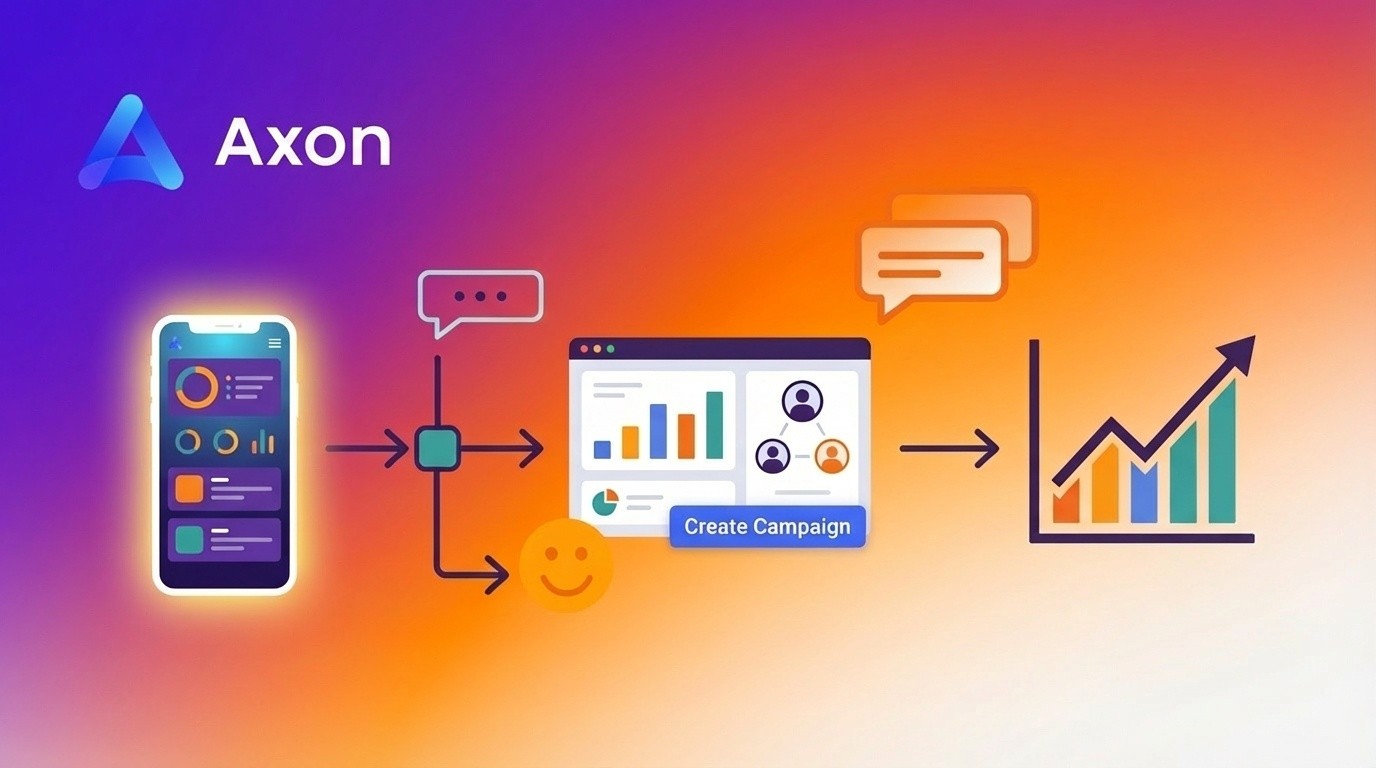
You've heard AppLovin's Axon can drive serious user acquisition for mobile apps and games. Now you're staring at the Ads Manager dashboard, wondering where to start.
This guide walks you through your first campaign - from account setup to launch to reading early performance data. No fluff, just the steps you actually need.
What Axon Ads Manager is
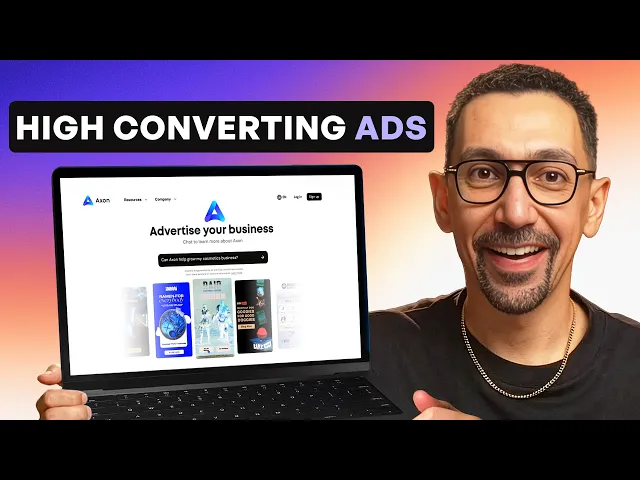
Axon is AppLovin's AI-powered advertising platform. Axon Ads Manager is the self-serve dashboard where you build, launch, and optimize campaigns.
AppLovin's ecosystem now consists of three core products: Axon (profitable advertising), WURL (streaming TV solutions), and Adjust (mobile measurement and analytics). Axon gives you access to massive mobile inventory with AI-driven optimization that gets smarter as your campaigns run.
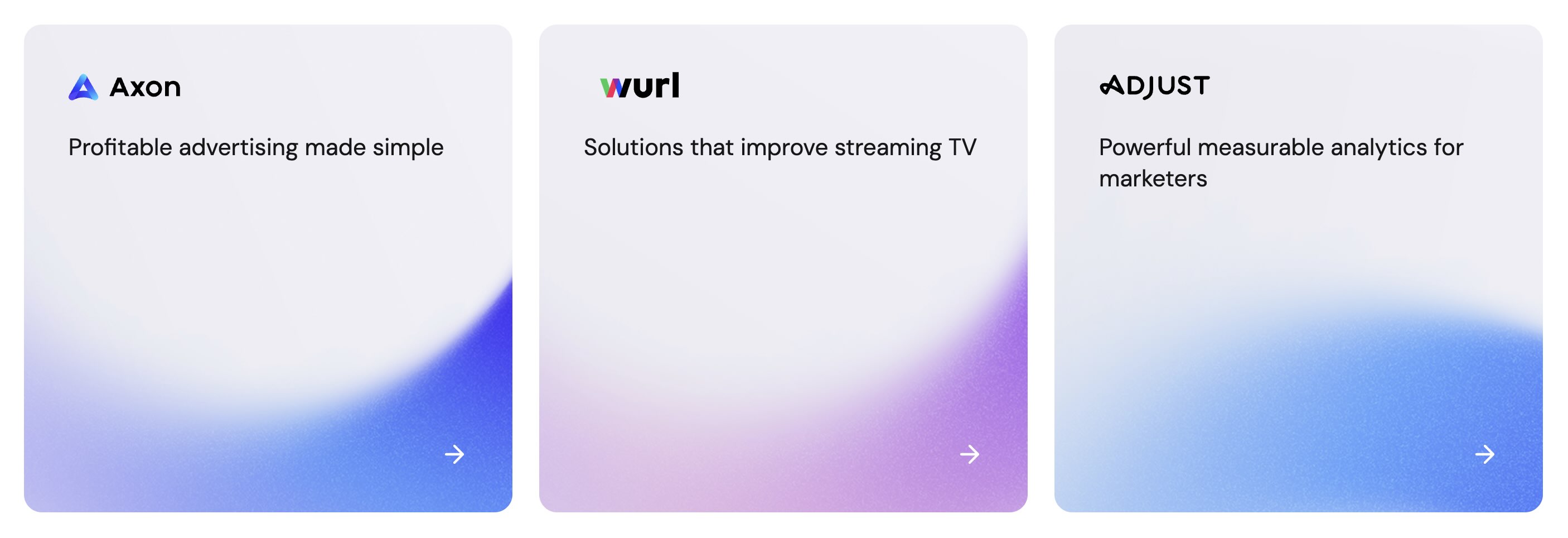
Source: Axon
Getting access without an Axon referral code
Axon Ads Manager normally requires a referral code or waitlist approval. If you sign up directly through AppLovin, you'll hit the Axon waitlist and may wait weeks for access.
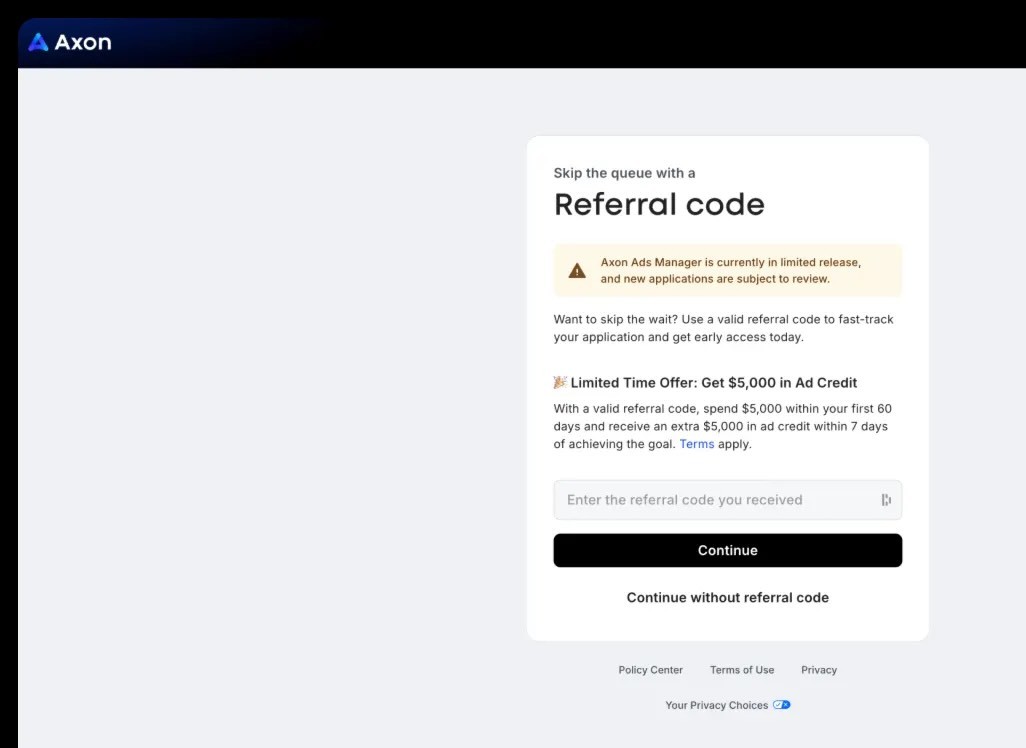
Skip the wait ➡️ Sign up through Creatify's partnership page with Axon for immediate access - no referral code needed.
What you need before building your campaign
Your app setup
Your app or game needs to be live (or in test) on the iOS App Store or Google Play. Axon campaigns deep-link to these store listings, so they must exist and be accessible. It also needs to be a legitimate app, not a scam or fraud.
You'll also need an AppLovin account with Axon Ads Manager access. Complete any business verification and billing details so your campaigns can actually spend when you launch.
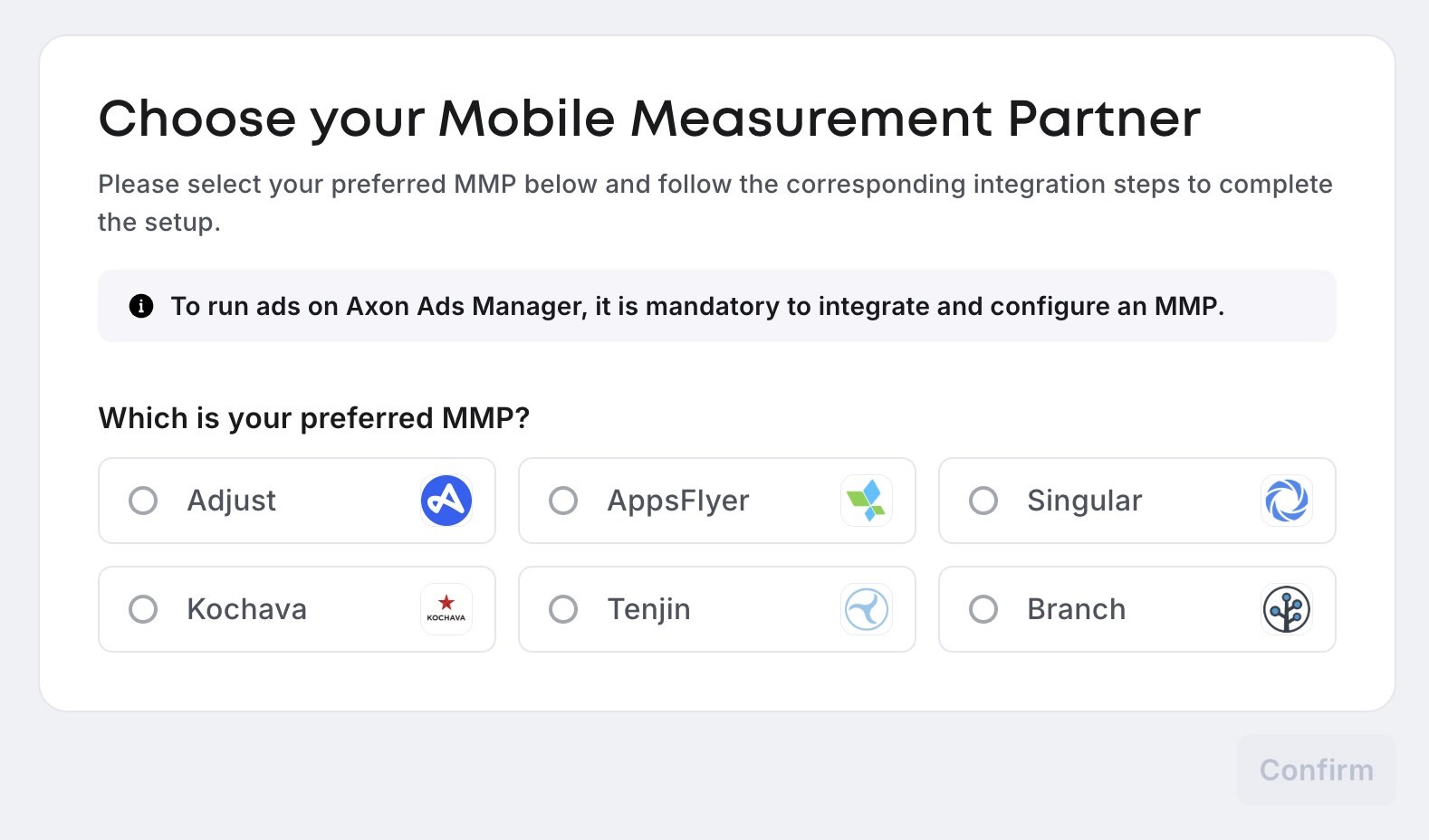
Connecting MMP (Mobile Measurement Partner)
Axon requires an MMP to be connected priori to running any campaigns for mobile apps. More on this here.
If you're looking to promote websites - check this guide on pixel installation.
Tracking and SDK basics
If you're monetizing with MAX, make sure the AppLovin SDK is integrated and initialized when your app starts. This improves ad caching and serving performance.
For user acquisition, confirm your mobile measurement partner or internal tracking is configured. Installs and in-app events need to flow back to AppLovin so Axon can optimize toward your goals.
Creative assets (high-level)
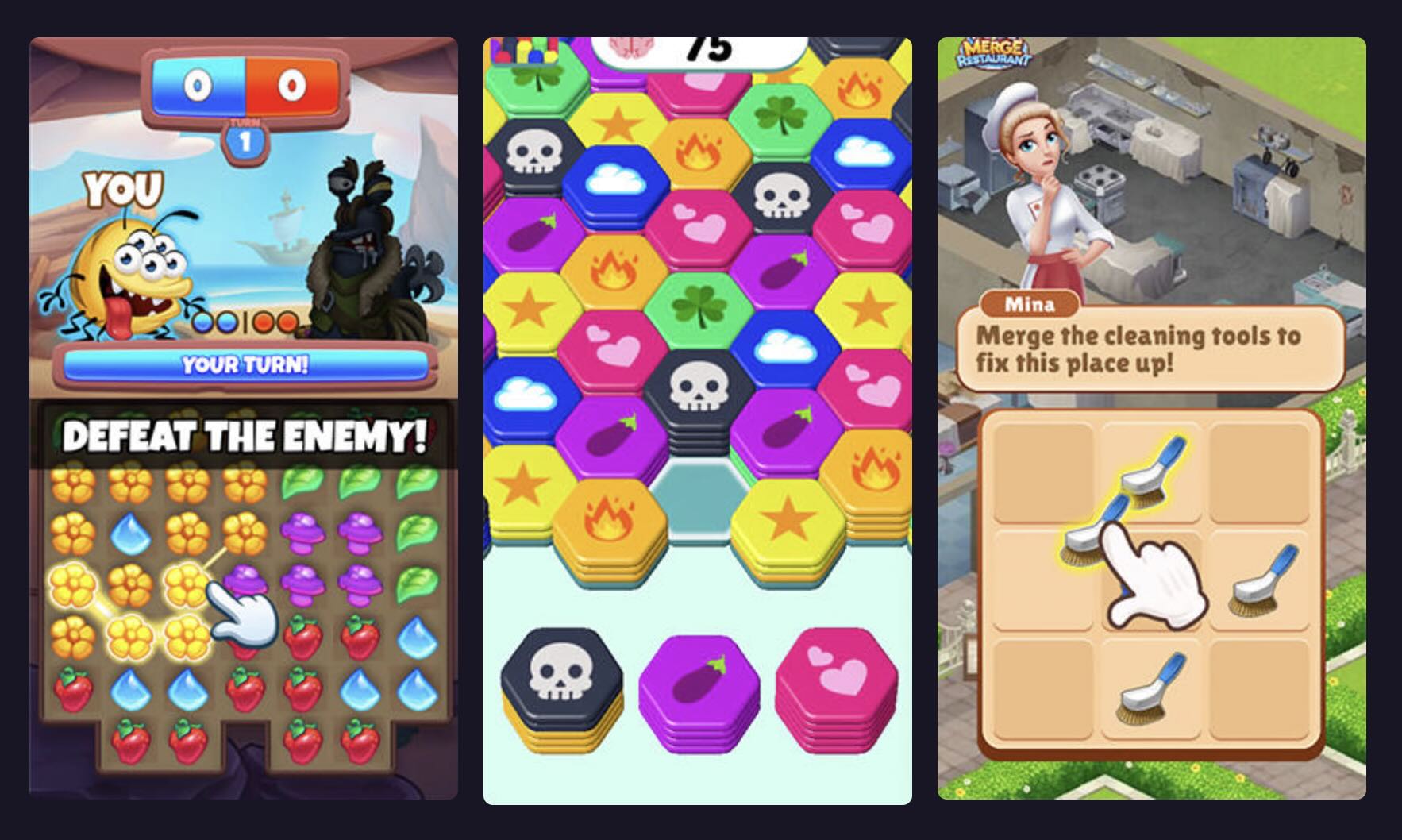
You'll need vertical video concepts and matching end cards. AppLovin recommends video with playable and static end cards, playable ads, and banners for best performance and scale.
Don't worry if you don't have these ready yet - we'll cover the fastest way to create them in Section 5.
Understanding Axon's campaign structure
Axon uses a three-level hierarchy:
Campaign level - Your objective, budget, optimization goal, schedule, target geo, tracking links, OS, and bidding strategy live here.
Ad set layer - This is where additional targeting parameters can be configured.
Creative sets / ads - Groups of videos, end cards, and brand assets. You can also set language and country targeting for specific creative sets, plus custom product pages or store listings if needed.
The 80/20 rule: one clear objective per campaign, one main audience cluster per ad set, and multiple creative concepts in each creative set. This gives Axon room to find winners without creating chaos in your account structure.
Step 1: Creating your first campaign in Axon Ads Manager
Log into Axon Ads Manager and navigate to the Campaigns page. Click Create to start a new campaign.
Use a naming convention that makes sense later when you have dozens of campaigns running. Try this format: AppName_GEO_Platform_Objective_Date
Example: PuzzleGame_US_iOS_INSTALL_2025-01
Pro tip: Start with a single "learning" campaign per geo and platform. Spreading budget across too many campaigns at launch fragments your data and slows down optimization.
Step 2: Choosing your objective and optimization goal
Axon offers several campaign objectives: installs, in-app events, ROAS, cost per purchase, and others.
If this is your first campaign, start simple. Optimize for installs or an early in-app event (like "tutorial complete" or "level 3 reached"). Once you have volume and can track downstream revenue reliably, graduate to ROAS or deeper conversion goals.
Don't over-constrain the optimization settings at launch. Give Axon enough signal volume - at least a week of data - before judging whether it's working.
Step 3: Setting budget, bid, and schedule
Budget types
Axon lets you choose daily or lifetime budgets. Daily budgets pace spend evenly across each day. Lifetime budgets let Axon spend more aggressively during high-performance windows.
For your first campaign, daily budgets are safer. They prevent surprise spend spikes while you're still learning the platform.
Bidding and goals
Your bid or goal field tells Axon what you're willing to pay per install (or per conversion event). Bid too low and you'll throttle delivery. Bid too high and you'll waste money before the algorithm learns.
Axon offers optimization windows of 7 days or 28 days. The 28-day window is currently the most successful option on AppLovin and should be chosen based on your app's retention curve and LTV model (which day your LTV model targets for payback).
Start with a test budget that can generate a meaningful number of target events in your chosen window. For most apps, that means at least 50-100 installs or conversions in week one.
Don't change budgets or bids too frequently. Let Axon exit its learning phase before making big adjustments.
Step 4: Defining targeting for your campaign
Geo and language
Select your target countries in the targeting section at the campaign level. Note that language targeting doesn't exist at the campaign level - you'll set language targeting later at the creative set level for each group of ads.
If you're launching a hyper-casual or broad-appeal game, start with a small cluster of high-value, English-speaking markets (US, UK, Canada, Australia). Once your creative and funnel are working, expand to other geos.
Platform, OS, and devices
You'll choose iOS or Android. Split campaigns by platform if you have different store pages, CPIs, or product-market fit per OS.
Axon's inventory is heavily mobile-first and optimized for full-screen formats - interstitial and rewarded placements. Make sure your campaign settings match that environment.
Audience and exclusions
Axon may offer audience features like first-party data uploads, lookalikes, or retargeting segments. If you're just starting, ignore these.
Start broad within your core geo, language, and platform. Use creative iteration and Axon's optimization to find what works, rather than micro-segmenting your audience from day one.
Step 5: Creating Axon-ready video creatives fast
Here's the problem everyone runs into: you need multiple video ad concepts to give Axon's AI something to optimize. Traditional production costs $1,000-$15,000 per video and takes 1-4 months between finding creators, shipping products, coordinating shoots, and editing.
You need ads live this week, not next quarter.
The fastest path: AI-generated video ads
Tools like Creatify let you create campaign-ready video ads in minutes instead of months. Here's how it works for AppLovin campaigns:
Paste your app's store URL into Creatify's URL-to-Video tool. The AI analyzes your app page, extracts key features and screenshots, and generates 5-10 script variations automatically.
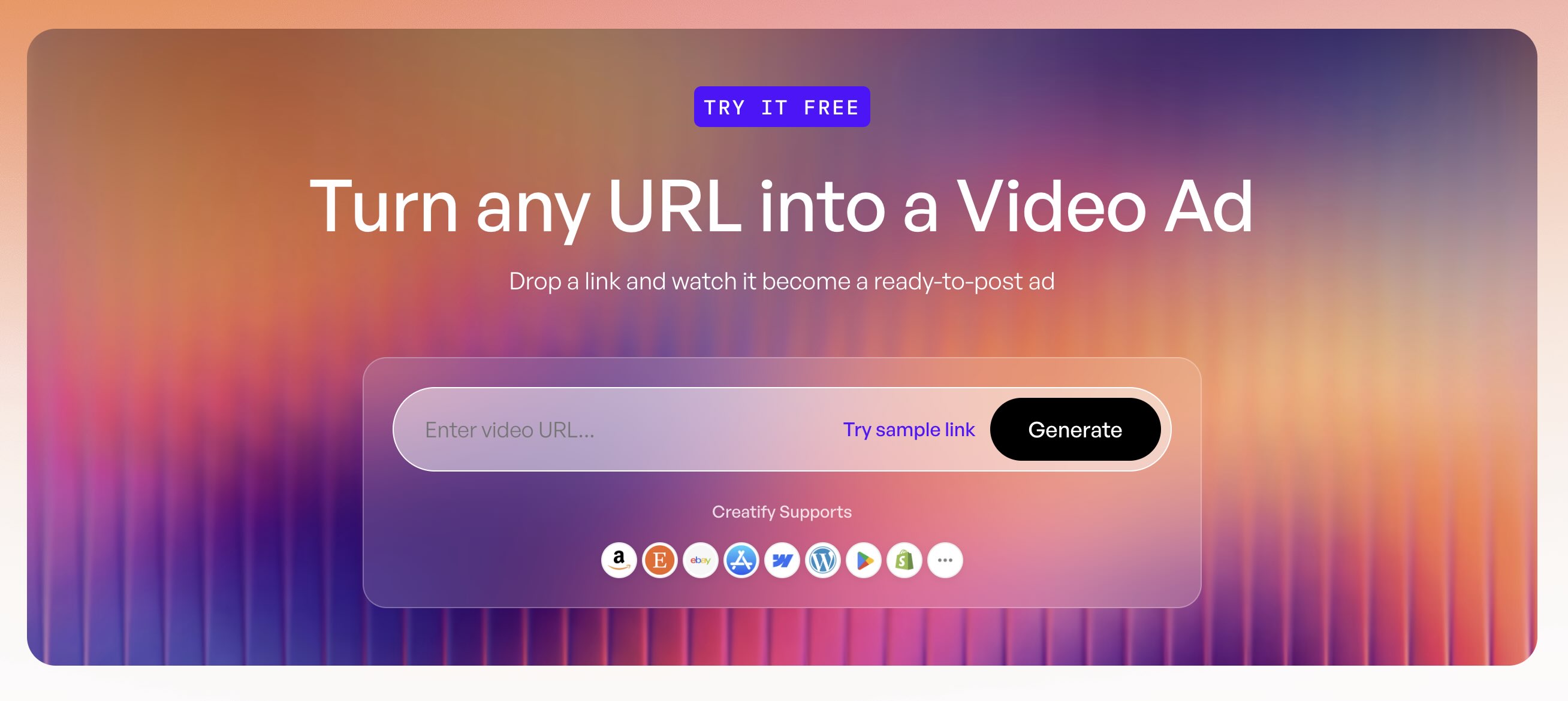
Choose a script you like (or write your own), then pick an AI avatar from Creatify's library of 1,500+ options. The AI avatar delivers your script with natural expressions and body language - no actors, no filming, no shipping products anywhere.
Add your app screenshots or gameplay footage as B-roll. Creatify auto-generates captions and lets you customize the end card with your app icon and store badge.
Export in 9:16 vertical format (the standard for mobile full-screen ads). Total time from URL to finished video: under 10 minutes.
Why this matters for Axon campaigns
Axon's AI optimization works best when you give it multiple creative concepts to test. With traditional production, you might launch with 2-3 videos and wait weeks for the next batch.
Axon's own engineering team has written about this — more assets and more variety drive higher performance, and creative volume is the constraint that holds most advertisers back.
With AI tools, you can create 10-15 video variations in a day, each testing different hooks, avatars, or value propositions. Upload them to Axon as separate creative sets (each creative set can hold up to 10 ads of each type), and let the platform find winners.
When one creative starts fatiguing (usually after 2-3 weeks), generate fresh concepts in minutes rather than restarting the entire production cycle.
Cost comparison: $3,000-$15,000 per traditional video vs. under $4 per AI-generated video through platforms like Creatify.
Step 6: Setting up creative sets
Navigate to the Campaigns page in Axon Ads Manager and select the campaign you just created.
Click Create to start a new creative set.
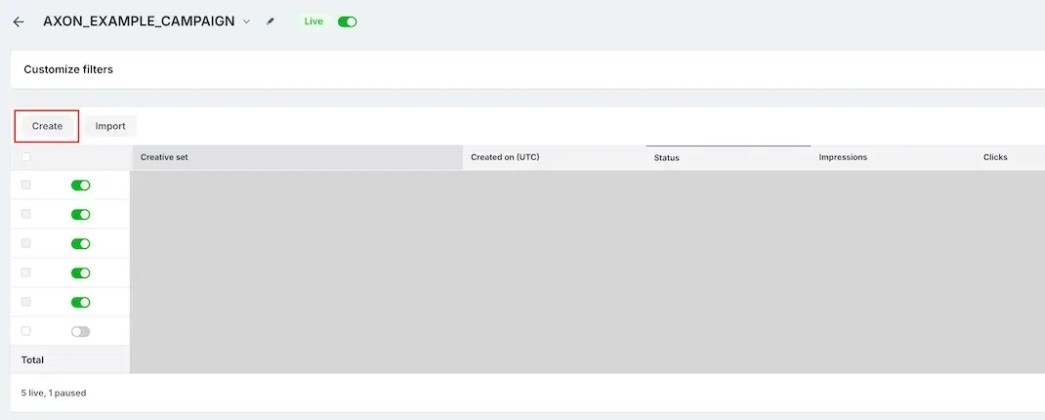
Name your creative set clearly - use a format that describes the creative concept. Example: PuzzleGame_LevelFail_Videos_v1
Adding your video assets
Click Add Assets. You have two options:
Select existing assets from your Media Library
Click Upload to add new video files directly
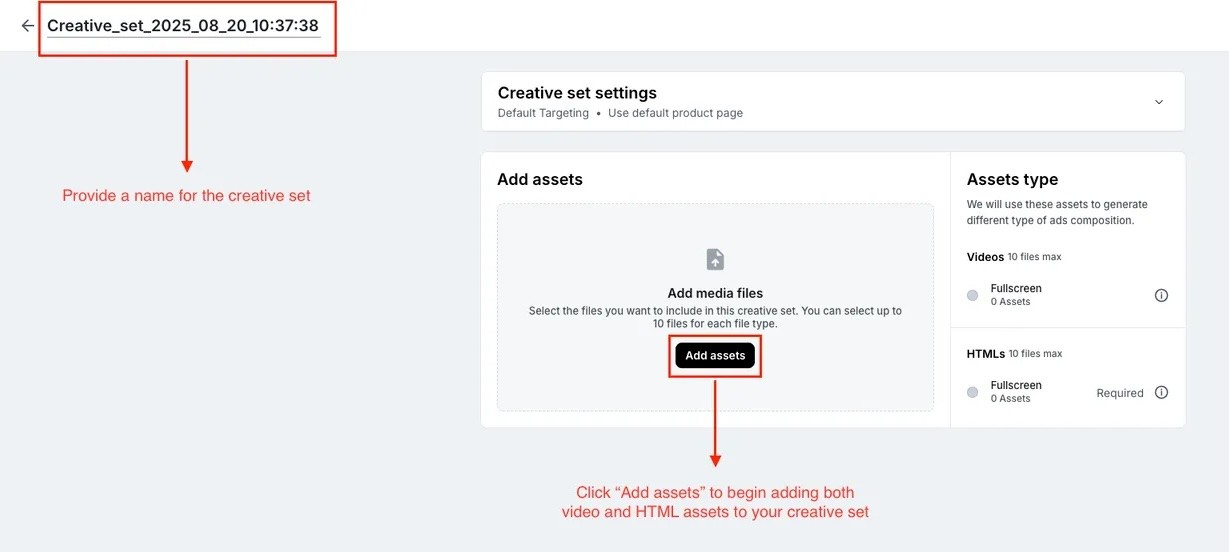
You can add up to 10 files per asset type (video, HTML, image) in each creative set. For your first campaign, focus on uploading 3-5 video variations to give Axon's algorithm meaningful choices.
After selecting or uploading your assets, click Confirm.
Advanced targeting for creative sets
This is where you set language targeting. Under Advanced targeting, you can configure:
Language - Target specific languages for this creative set
Country/Region - Further narrow which countries see these specific creatives
Custom product page - Direct users to a custom App Store product page (if you have one set up)
Preview your ads in the Preview section to make sure everything looks correct, then click Save as live to activate the creative set.
Step 7: Video ad specs for Axon
Make sure your video assets meet these requirements before uploading:
Format: 9:16 vertical for best fit in full-screen mobile inventory
Length: 15-60 seconds for interstitial and rewarded placements
CTA: Show your call-to-action early (within the first 5 seconds)
AppLovin recommends video or playable ads as primary ad types, with graphic ads as incremental coverage. Video should be paired with a portrait end card where applicable.
Step 8: Compliance and policy requirements
Axon enforces strict creative policies. Here are the common rejection triggers:
Content restrictions
No depictions of violence, drug use, or nudity. No misleading or shocking content. Every ad must have clear branding and an explicit CTA like "Download Now" or "Play Now."
Store badge rules
If you use store badges in your end cards, they must be OS-specific. iTunes/Apple badge only for iOS campaigns. Google Play badge only for Android campaigns. Or use no badges at all.
Checklist to avoid disapprovals
Correct destination URLs (matching your app's actual store page)
Accurate app preview in the video (no fake system UI or features you don't have)
Adherence to both AppLovin policies and app store policies
No fake "close" buttons or UI elements designed to trick users into clicking
Step 9: Launching your campaign
Review your settings one last time: objective, budget, targeting, creative sets.
Click Launch campaign in Axon Ads Manager.
Your ads may go through a review process before going live. Typical approval time is a few hours, but can be up to 24 hours for first-time accounts.
Once approved, Axon starts serving your ads. Performance usually takes 24-72 hours to stabilize as the algorithm collects data and learns which creative and audience combinations drive your target events.
Don't make big changes in the first 72 hours unless there's a clear technical issue (zero spend, broken tracking, obvious policy violation).
Reading early data: What to watch in the first 7-14 days
Open your campaign dashboard in Axon and look at these metrics:
Overall campaign health
Impressions - Is your ad actually serving? Low impressions usually mean your bid is too low or your budget is too small.
CTR - Industry benchmark for mobile app ads is 1-3%. Higher is better, but not the only thing that matters.
Install rate - Percentage of clicks that convert to installs. Low install rate despite good CTR means your store page needs work or your ad is overselling features you don't have.
Creative-level performance
Once Axon has served enough volume (usually 5,000+ impressions per creative), check which videos are driving installs efficiently.
Look at cost per install and downstream events (like tutorial completion or day-1 retention) if you're tracking them. Axon will automatically shift budget toward winning creatives and deprioritize underperformers - you don't need to manually pause creatives.
Simple diagnostic flow for week one
Low impressions → increase bid or decrease goal, or adjust daily budget
Good CTR but poor installs → review app store page and creative messaging alignment
Good installs but poor downstream revenue → consider shifting to a deeper optimization event once you have 50+ conversions per week
Iteration and scaling: The 80/20 playbook
Creative iteration
AppLovin recommends rotating new video concepts every 2-3 weeks. High-volume apps may require 100+ new creatives per month to maintain performance. Creative fatigue is real - even winning ads lose effectiveness over time.
Upload new concepts as new creative sets so performance is easy to compare. Keep at least 2-3 distinct ad concepts live at any time to give Axon's algorithm choice.
Budget and geo scaling
Once a campaign is stable and hitting your goals, scale budget gradually - no more than 20-30% increases per day. Doubling budgets overnight can reset the learning phase.
To expand to new GEOs, clone your winning campaign structure rather than adding all GEOs to one campaign. This keeps data clean and lets Axon optimize per market.
Official Axon and AppLovin resources
MAX / SDK Getting Started - For SDK integration and monetization setup
Best Practices & Guidelines - Ad specs overview
Frequently Asked Questions
What is AppLovin Axon?
AppLovin Axon is an AI-powered advertising platform for mobile app and game user acquisition. It combines AppLovin's mobile ad inventory with machine learning optimization to help advertisers drive installs and in-app conversions efficiently.
How do I access Axon Ads Manager?
Axon Ads Manager normally requires an Axon referral code or waitlist approval. If you sign up directly through AppLovin without a referral code, you'll join the Axon waitlist and may wait weeks for access.
Skip the Axon waitlist: Use Creatify's partnership page with Axon for immediate access without needing a referral code.
What type of ads work best on AppLovin Axon?
Video ads in 9:16 vertical format perform best on Axon, especially for full-screen interstitial and rewarded placements. AppLovin recommends pairing videos with portrait end cards that include clear CTAs and store badges. Playable ads also work well for game advertisers.
How long does it take to create video ads for Axon?
Traditional production takes 1-4 months and costs $3,000-$15,000 per video. AI tools like Creatify can generate campaign-ready video ads in under 10 minutes by analyzing your app's store page, creating scripts, and rendering AI avatar videos with your app screenshots as B-roll.
Can I use AI ads on AppLovin Axon?
Yes. Axon accepts AI-generated video ads as long as they meet creative policy requirements (clear branding, accurate CTAs, no misleading content, correct store badges). Many advertisers use AI ads to scale creative production and give Axon's optimization more concepts to test.
What budget should I start with for my first Axon campaign?
Start with a daily budget that can generate at least 50-100 target events (installs or conversions) in your first week. For most apps in competitive markets, this means $500-$1,000 per week minimum. Starting too small fragments data and prevents Axon's AI from learning effectively.
How do I optimize AppLovin Axon campaigns?
Let campaigns run for 7 days before making major changes. After week one, focus on these optimization levers:
Adjust your bid or ROAS goal based on performance data
Modify your CPE (cost per event) goal if optimizing for in-app events
Add or remove geos based on which markets are hitting your efficiency targets
Rotate in fresh video concepts every 2-3 weeks
Don't manually pause underperforming creatives - Axon's algorithm automatically picks up the best-performing ads and deprioritizes losers. Scale winning campaigns gradually with 20-30% budget increases max to avoid resetting the learning phase.
What are AppLovin notification ads?
Notification ads are a placement type within AppLovin's network that appear as notification-style messages in apps. They're typically used for re-engagement campaigns. For first-time user acquisition campaigns in Axon, focus on standard video and interstitial placements instead.
Where can I find the AppLovin ads library?
AppLovin doesn't have a public ads library like Meta or Google. To see what types of ads work on the network, check the creative guidelines in AppLovin's developer documentation or review the example ads in Axon's knowledge base.
You've heard AppLovin's Axon can drive serious user acquisition for mobile apps and games. Now you're staring at the Ads Manager dashboard, wondering where to start.
This guide walks you through your first campaign - from account setup to launch to reading early performance data. No fluff, just the steps you actually need.
What Axon Ads Manager is
Axon is AppLovin's AI-powered advertising platform. Axon Ads Manager is the self-serve dashboard where you build, launch, and optimize campaigns.
AppLovin's ecosystem now consists of three core products: Axon (profitable advertising), WURL (streaming TV solutions), and Adjust (mobile measurement and analytics). Axon gives you access to massive mobile inventory with AI-driven optimization that gets smarter as your campaigns run.
Source: Axon
Getting access without an Axon referral code
Axon Ads Manager normally requires a referral code or waitlist approval. If you sign up directly through AppLovin, you'll hit the Axon waitlist and may wait weeks for access.
Skip the wait ➡️ Sign up through Creatify's partnership page with Axon for immediate access - no referral code needed.
What you need before building your campaign
Your app setup
Your app or game needs to be live (or in test) on the iOS App Store or Google Play. Axon campaigns deep-link to these store listings, so they must exist and be accessible. It also needs to be a legitimate app, not a scam or fraud.
You'll also need an AppLovin account with Axon Ads Manager access. Complete any business verification and billing details so your campaigns can actually spend when you launch.
Connecting MMP (Mobile Measurement Partner)
Axon requires an MMP to be connected priori to running any campaigns for mobile apps. More on this here.
If you're looking to promote websites - check this guide on pixel installation.
Tracking and SDK basics
If you're monetizing with MAX, make sure the AppLovin SDK is integrated and initialized when your app starts. This improves ad caching and serving performance.
For user acquisition, confirm your mobile measurement partner or internal tracking is configured. Installs and in-app events need to flow back to AppLovin so Axon can optimize toward your goals.
Creative assets (high-level)
You'll need vertical video concepts and matching end cards. AppLovin recommends video with playable and static end cards, playable ads, and banners for best performance and scale.
Don't worry if you don't have these ready yet - we'll cover the fastest way to create them in Section 5.
Understanding Axon's campaign structure
Axon uses a three-level hierarchy:
Campaign level - Your objective, budget, optimization goal, schedule, target geo, tracking links, OS, and bidding strategy live here.
Ad set layer - This is where additional targeting parameters can be configured.
Creative sets / ads - Groups of videos, end cards, and brand assets. You can also set language and country targeting for specific creative sets, plus custom product pages or store listings if needed.
The 80/20 rule: one clear objective per campaign, one main audience cluster per ad set, and multiple creative concepts in each creative set. This gives Axon room to find winners without creating chaos in your account structure.
Step 1: Creating your first campaign in Axon Ads Manager
Log into Axon Ads Manager and navigate to the Campaigns page. Click Create to start a new campaign.
Use a naming convention that makes sense later when you have dozens of campaigns running. Try this format: AppName_GEO_Platform_Objective_Date
Example: PuzzleGame_US_iOS_INSTALL_2025-01
Pro tip: Start with a single "learning" campaign per geo and platform. Spreading budget across too many campaigns at launch fragments your data and slows down optimization.
Step 2: Choosing your objective and optimization goal
Axon offers several campaign objectives: installs, in-app events, ROAS, cost per purchase, and others.
If this is your first campaign, start simple. Optimize for installs or an early in-app event (like "tutorial complete" or "level 3 reached"). Once you have volume and can track downstream revenue reliably, graduate to ROAS or deeper conversion goals.
Don't over-constrain the optimization settings at launch. Give Axon enough signal volume - at least a week of data - before judging whether it's working.
Step 3: Setting budget, bid, and schedule
Budget types
Axon lets you choose daily or lifetime budgets. Daily budgets pace spend evenly across each day. Lifetime budgets let Axon spend more aggressively during high-performance windows.
For your first campaign, daily budgets are safer. They prevent surprise spend spikes while you're still learning the platform.
Bidding and goals
Your bid or goal field tells Axon what you're willing to pay per install (or per conversion event). Bid too low and you'll throttle delivery. Bid too high and you'll waste money before the algorithm learns.
Axon offers optimization windows of 7 days or 28 days. The 28-day window is currently the most successful option on AppLovin and should be chosen based on your app's retention curve and LTV model (which day your LTV model targets for payback).
Start with a test budget that can generate a meaningful number of target events in your chosen window. For most apps, that means at least 50-100 installs or conversions in week one.
Don't change budgets or bids too frequently. Let Axon exit its learning phase before making big adjustments.
Step 4: Defining targeting for your campaign
Geo and language
Select your target countries in the targeting section at the campaign level. Note that language targeting doesn't exist at the campaign level - you'll set language targeting later at the creative set level for each group of ads.
If you're launching a hyper-casual or broad-appeal game, start with a small cluster of high-value, English-speaking markets (US, UK, Canada, Australia). Once your creative and funnel are working, expand to other geos.
Platform, OS, and devices
You'll choose iOS or Android. Split campaigns by platform if you have different store pages, CPIs, or product-market fit per OS.
Axon's inventory is heavily mobile-first and optimized for full-screen formats - interstitial and rewarded placements. Make sure your campaign settings match that environment.
Audience and exclusions
Axon may offer audience features like first-party data uploads, lookalikes, or retargeting segments. If you're just starting, ignore these.
Start broad within your core geo, language, and platform. Use creative iteration and Axon's optimization to find what works, rather than micro-segmenting your audience from day one.
Step 5: Creating Axon-ready video creatives fast
Here's the problem everyone runs into: you need multiple video ad concepts to give Axon's AI something to optimize. Traditional production costs $1,000-$15,000 per video and takes 1-4 months between finding creators, shipping products, coordinating shoots, and editing.
You need ads live this week, not next quarter.
The fastest path: AI-generated video ads
Tools like Creatify let you create campaign-ready video ads in minutes instead of months. Here's how it works for AppLovin campaigns:
Paste your app's store URL into Creatify's URL-to-Video tool. The AI analyzes your app page, extracts key features and screenshots, and generates 5-10 script variations automatically.
Choose a script you like (or write your own), then pick an AI avatar from Creatify's library of 1,500+ options. The AI avatar delivers your script with natural expressions and body language - no actors, no filming, no shipping products anywhere.
Add your app screenshots or gameplay footage as B-roll. Creatify auto-generates captions and lets you customize the end card with your app icon and store badge.
Export in 9:16 vertical format (the standard for mobile full-screen ads). Total time from URL to finished video: under 10 minutes.
Why this matters for Axon campaigns
Axon's AI optimization works best when you give it multiple creative concepts to test. With traditional production, you might launch with 2-3 videos and wait weeks for the next batch.
Axon's own engineering team has written about this — more assets and more variety drive higher performance, and creative volume is the constraint that holds most advertisers back.
With AI tools, you can create 10-15 video variations in a day, each testing different hooks, avatars, or value propositions. Upload them to Axon as separate creative sets (each creative set can hold up to 10 ads of each type), and let the platform find winners.
When one creative starts fatiguing (usually after 2-3 weeks), generate fresh concepts in minutes rather than restarting the entire production cycle.
Cost comparison: $3,000-$15,000 per traditional video vs. under $4 per AI-generated video through platforms like Creatify.
Step 6: Setting up creative sets
Navigate to the Campaigns page in Axon Ads Manager and select the campaign you just created.
Click Create to start a new creative set.
Name your creative set clearly - use a format that describes the creative concept. Example: PuzzleGame_LevelFail_Videos_v1
Adding your video assets
Click Add Assets. You have two options:
Select existing assets from your Media Library
Click Upload to add new video files directly
You can add up to 10 files per asset type (video, HTML, image) in each creative set. For your first campaign, focus on uploading 3-5 video variations to give Axon's algorithm meaningful choices.
After selecting or uploading your assets, click Confirm.
Advanced targeting for creative sets
This is where you set language targeting. Under Advanced targeting, you can configure:
Language - Target specific languages for this creative set
Country/Region - Further narrow which countries see these specific creatives
Custom product page - Direct users to a custom App Store product page (if you have one set up)
Preview your ads in the Preview section to make sure everything looks correct, then click Save as live to activate the creative set.
Step 7: Video ad specs for Axon
Make sure your video assets meet these requirements before uploading:
Format: 9:16 vertical for best fit in full-screen mobile inventory
Length: 15-60 seconds for interstitial and rewarded placements
CTA: Show your call-to-action early (within the first 5 seconds)
AppLovin recommends video or playable ads as primary ad types, with graphic ads as incremental coverage. Video should be paired with a portrait end card where applicable.
Step 8: Compliance and policy requirements
Axon enforces strict creative policies. Here are the common rejection triggers:
Content restrictions
No depictions of violence, drug use, or nudity. No misleading or shocking content. Every ad must have clear branding and an explicit CTA like "Download Now" or "Play Now."
Store badge rules
If you use store badges in your end cards, they must be OS-specific. iTunes/Apple badge only for iOS campaigns. Google Play badge only for Android campaigns. Or use no badges at all.
Checklist to avoid disapprovals
Correct destination URLs (matching your app's actual store page)
Accurate app preview in the video (no fake system UI or features you don't have)
Adherence to both AppLovin policies and app store policies
No fake "close" buttons or UI elements designed to trick users into clicking
Step 9: Launching your campaign
Review your settings one last time: objective, budget, targeting, creative sets.
Click Launch campaign in Axon Ads Manager.
Your ads may go through a review process before going live. Typical approval time is a few hours, but can be up to 24 hours for first-time accounts.
Once approved, Axon starts serving your ads. Performance usually takes 24-72 hours to stabilize as the algorithm collects data and learns which creative and audience combinations drive your target events.
Don't make big changes in the first 72 hours unless there's a clear technical issue (zero spend, broken tracking, obvious policy violation).
Reading early data: What to watch in the first 7-14 days
Open your campaign dashboard in Axon and look at these metrics:
Overall campaign health
Impressions - Is your ad actually serving? Low impressions usually mean your bid is too low or your budget is too small.
CTR - Industry benchmark for mobile app ads is 1-3%. Higher is better, but not the only thing that matters.
Install rate - Percentage of clicks that convert to installs. Low install rate despite good CTR means your store page needs work or your ad is overselling features you don't have.
Creative-level performance
Once Axon has served enough volume (usually 5,000+ impressions per creative), check which videos are driving installs efficiently.
Look at cost per install and downstream events (like tutorial completion or day-1 retention) if you're tracking them. Axon will automatically shift budget toward winning creatives and deprioritize underperformers - you don't need to manually pause creatives.
Simple diagnostic flow for week one
Low impressions → increase bid or decrease goal, or adjust daily budget
Good CTR but poor installs → review app store page and creative messaging alignment
Good installs but poor downstream revenue → consider shifting to a deeper optimization event once you have 50+ conversions per week
Iteration and scaling: The 80/20 playbook
Creative iteration
AppLovin recommends rotating new video concepts every 2-3 weeks. High-volume apps may require 100+ new creatives per month to maintain performance. Creative fatigue is real - even winning ads lose effectiveness over time.
Upload new concepts as new creative sets so performance is easy to compare. Keep at least 2-3 distinct ad concepts live at any time to give Axon's algorithm choice.
Budget and geo scaling
Once a campaign is stable and hitting your goals, scale budget gradually - no more than 20-30% increases per day. Doubling budgets overnight can reset the learning phase.
To expand to new GEOs, clone your winning campaign structure rather than adding all GEOs to one campaign. This keeps data clean and lets Axon optimize per market.
Official Axon and AppLovin resources
MAX / SDK Getting Started - For SDK integration and monetization setup
Best Practices & Guidelines - Ad specs overview
Frequently Asked Questions
What is AppLovin Axon?
AppLovin Axon is an AI-powered advertising platform for mobile app and game user acquisition. It combines AppLovin's mobile ad inventory with machine learning optimization to help advertisers drive installs and in-app conversions efficiently.
How do I access Axon Ads Manager?
Axon Ads Manager normally requires an Axon referral code or waitlist approval. If you sign up directly through AppLovin without a referral code, you'll join the Axon waitlist and may wait weeks for access.
Skip the Axon waitlist: Use Creatify's partnership page with Axon for immediate access without needing a referral code.
What type of ads work best on AppLovin Axon?
Video ads in 9:16 vertical format perform best on Axon, especially for full-screen interstitial and rewarded placements. AppLovin recommends pairing videos with portrait end cards that include clear CTAs and store badges. Playable ads also work well for game advertisers.
How long does it take to create video ads for Axon?
Traditional production takes 1-4 months and costs $3,000-$15,000 per video. AI tools like Creatify can generate campaign-ready video ads in under 10 minutes by analyzing your app's store page, creating scripts, and rendering AI avatar videos with your app screenshots as B-roll.
Can I use AI ads on AppLovin Axon?
Yes. Axon accepts AI-generated video ads as long as they meet creative policy requirements (clear branding, accurate CTAs, no misleading content, correct store badges). Many advertisers use AI ads to scale creative production and give Axon's optimization more concepts to test.
What budget should I start with for my first Axon campaign?
Start with a daily budget that can generate at least 50-100 target events (installs or conversions) in your first week. For most apps in competitive markets, this means $500-$1,000 per week minimum. Starting too small fragments data and prevents Axon's AI from learning effectively.
How do I optimize AppLovin Axon campaigns?
Let campaigns run for 7 days before making major changes. After week one, focus on these optimization levers:
Adjust your bid or ROAS goal based on performance data
Modify your CPE (cost per event) goal if optimizing for in-app events
Add or remove geos based on which markets are hitting your efficiency targets
Rotate in fresh video concepts every 2-3 weeks
Don't manually pause underperforming creatives - Axon's algorithm automatically picks up the best-performing ads and deprioritizes losers. Scale winning campaigns gradually with 20-30% budget increases max to avoid resetting the learning phase.
What are AppLovin notification ads?
Notification ads are a placement type within AppLovin's network that appear as notification-style messages in apps. They're typically used for re-engagement campaigns. For first-time user acquisition campaigns in Axon, focus on standard video and interstitial placements instead.
Where can I find the AppLovin ads library?
AppLovin doesn't have a public ads library like Meta or Google. To see what types of ads work on the network, check the creative guidelines in AppLovin's developer documentation or review the example ads in Axon's knowledge base.