Équipe Creatify
PARTAGER


DANS CET ARTICLE
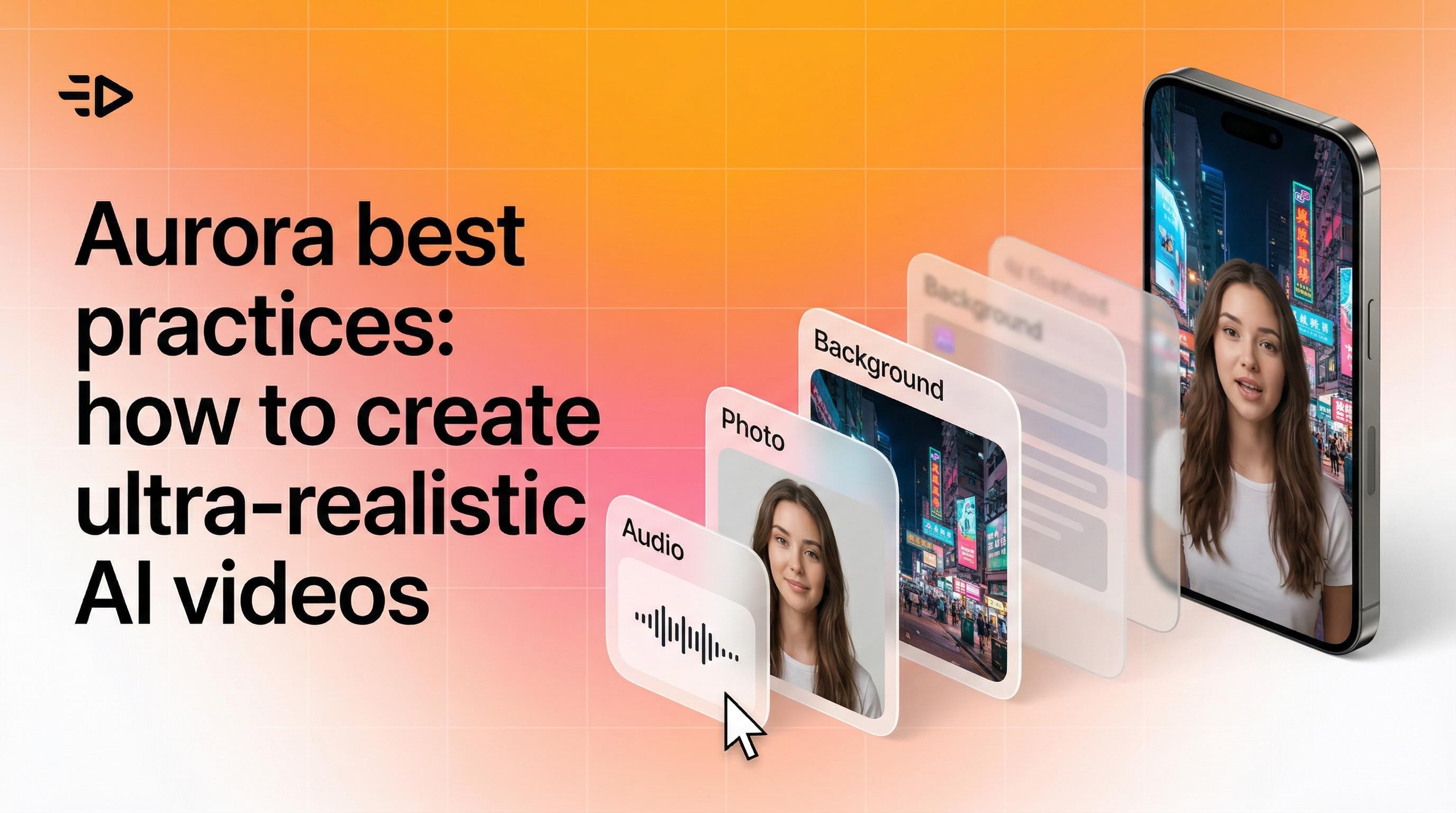
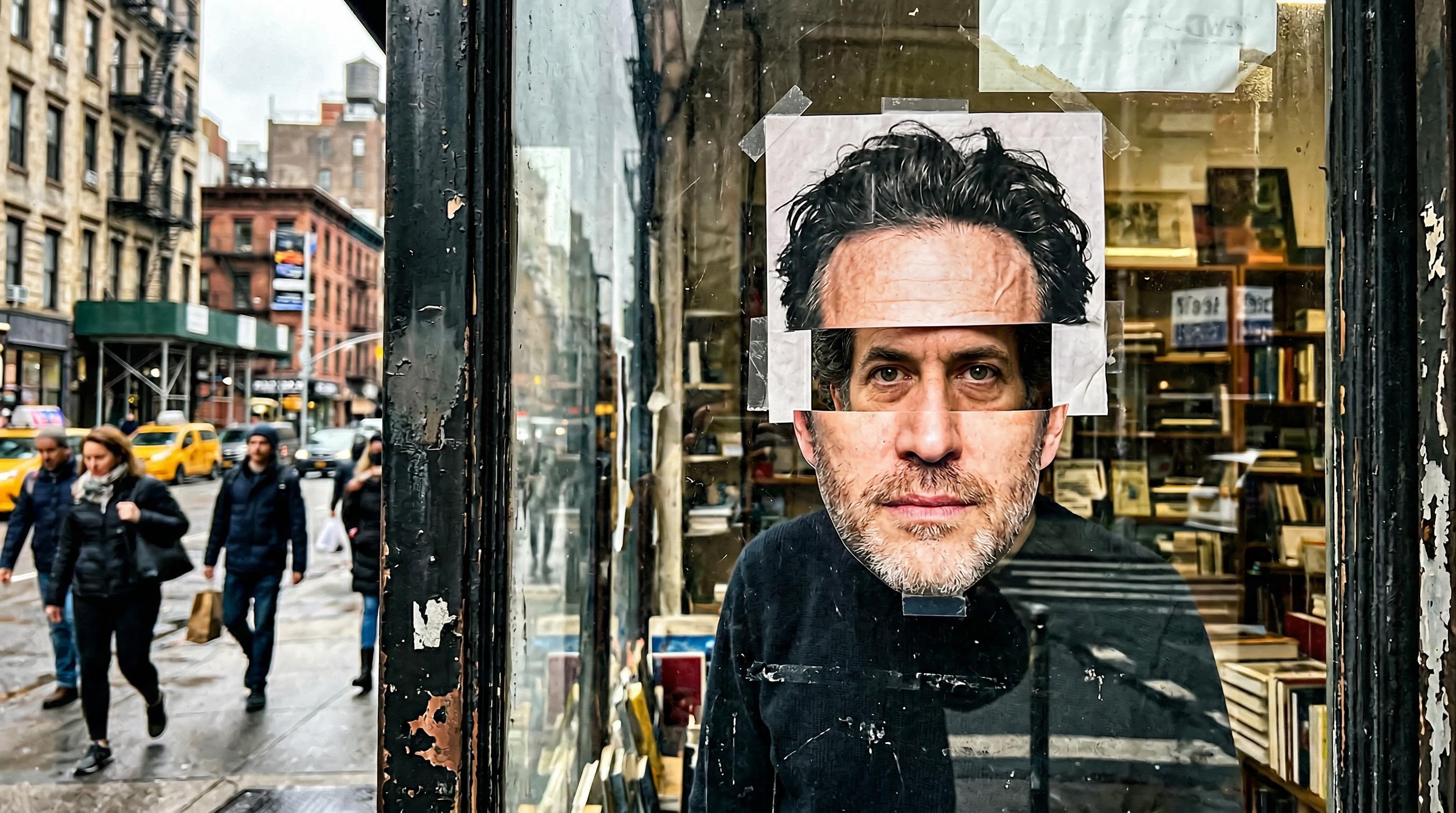
La plupart des générateurs de vidéos AI vous donnent la vallée dérangeante - des bouches qui bougent, des yeux qui ne bougent pas, des corps qui restent figés comme des découpages en carton. Aurora est conçu pour remédier à cela.
Aurora est le modèle de diffusion propriétaire de Creatify (DiT) pour la synthèse d'avatar pilotée par l'audio. Donnez-lui une photo et un clip audio, et il génère une vidéo de qualité studio de cette personne parlant, présentant ou chantant - avec des expressions faciales synchronisées, des mouvements oculaires naturels, une respiration et des gestes de la partie supérieure du corps complets. Ce n'est pas juste de la synchronisation labiale. C'est une performance complète.
Le modèle a déjà été intégré dans ElevenLabs, Runware et fal.ai comme l'un des premiers modèles de génération vidéo - un signal de la direction que prend la génération vidéo par l'AI.
Ce guide explique comment en tirer les meilleurs résultats.
Qu'est-ce qui rend Aurora différent
La plupart des outils de visage parlant animent la bouche et s'arrêtent là. Aurora traite l'avatar comme une personne entière, établissant un nouveau standard pour la génération de vidéo AI réaliste.
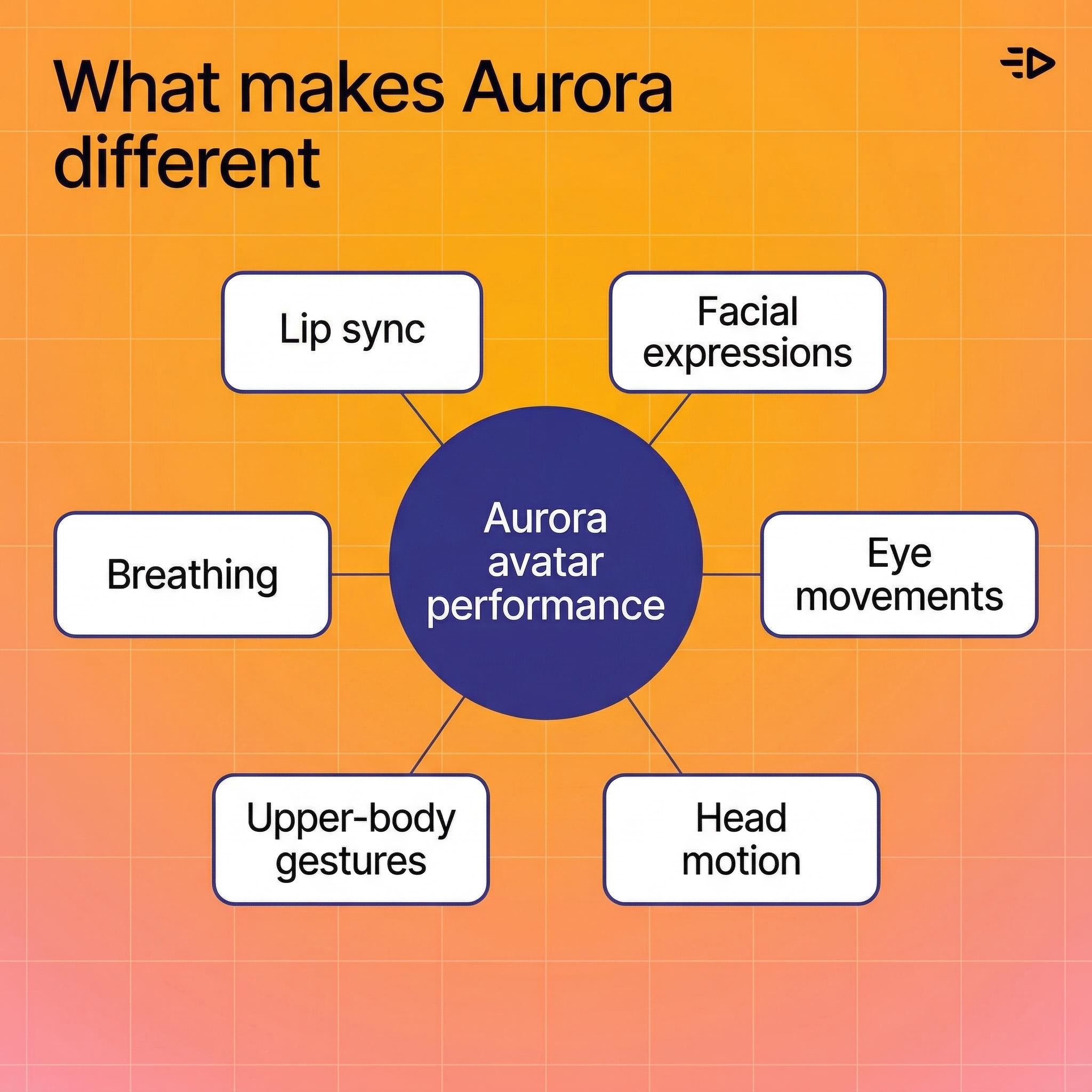
Voici ce que le modèle produit réellement :
Synchronisation labiale qui suit l'audio avec précision, y compris les formes subtiles de la bouche pour différents phonèmes
Expressions faciales qui correspondent au ton vocal et à la livraison émotionnelle
Mouvements des yeux - clignements, déplacements du regard, concentration naturelle
Mouvement de la tête - hochements, inclinaisons, changements de position subtils
Gestes de la partie supérieure du corps - mouvements des mains, de l'épaule, le type de mouvement naturel qui rend un visage parlant réaliste plutôt que robotique
Respiration - mouvement de la poitrine entre les phrases
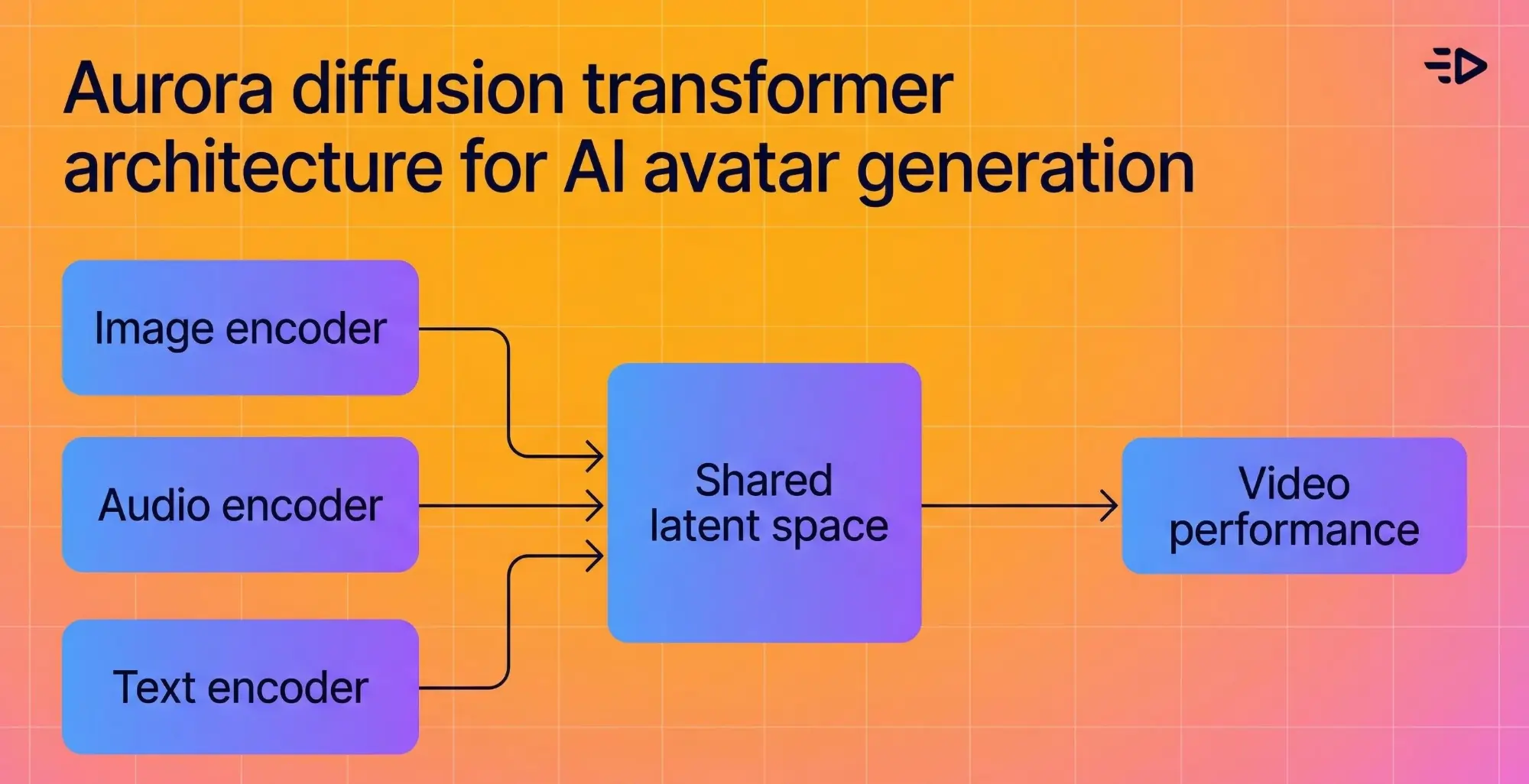
L'architecture sous-jacente fusionne un encodeur d'image, un encodeur de texte, et un encodeur audio dans un espace latent partagé, afin que le modèle comprenne le contexte émotionnel de ce qui est dit et le reflète visuellement. Si l'audio semble enthousiaste, l'avatar a l'air enthousiaste.
Ce que vous pouvez créer avec
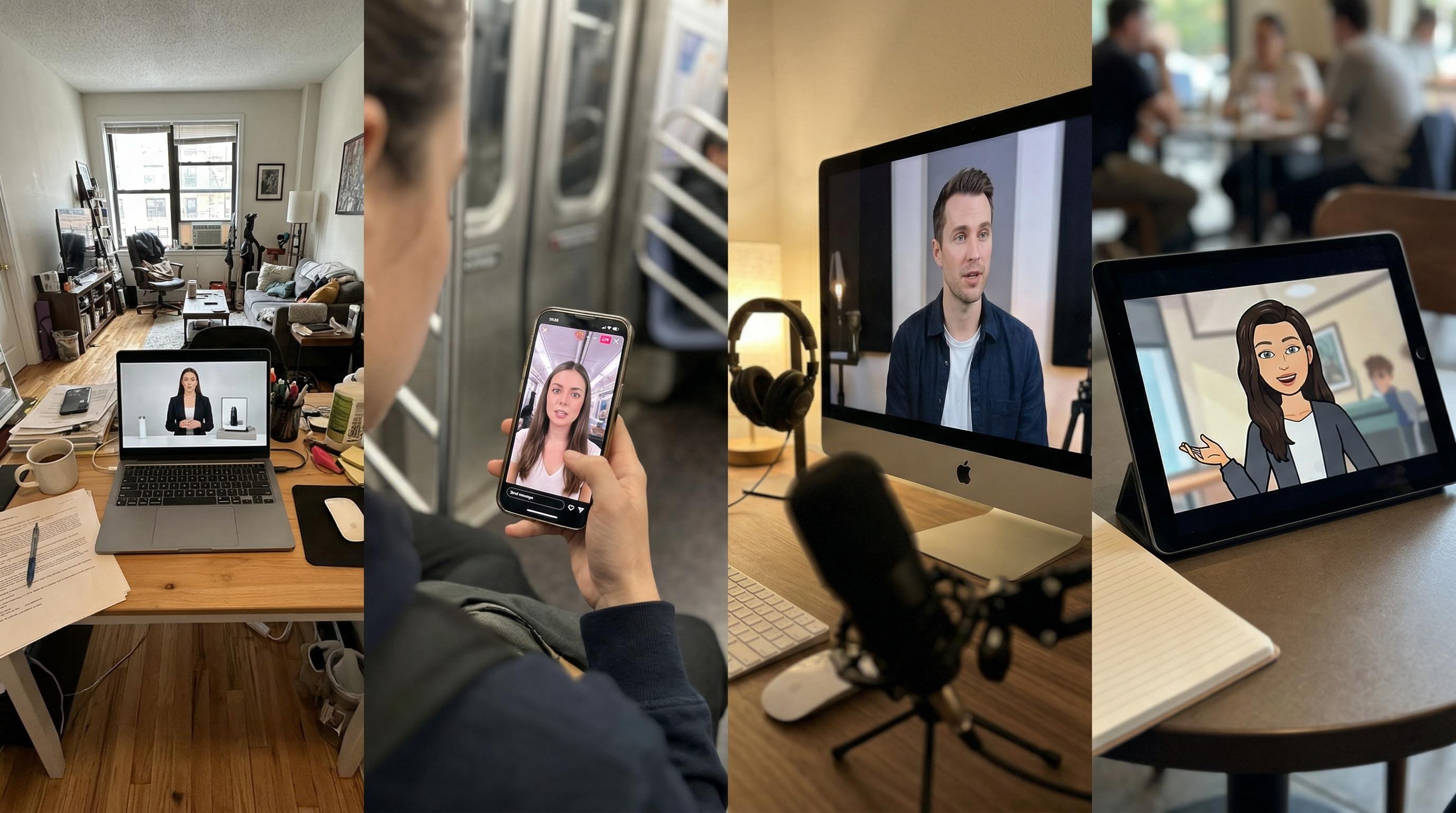
Aurora prend en charge une large gamme de types de contenu au-delà de simples visages parlants, ce qui en fait un outil puissant pour les flux de travail de génération de vidéos AI:
Démo de produit - Montrez un porte-parole tenant un produit, le pointant et expliquant ses avantages. Fonctionne pour les soins de la peau, la technologie, les biens de consommation, tout.
Annonces de style UGC - Format selfie, léger mouvement de la caméra à main levée, livraison décontractée. Difficile de distinguer du contenu de créateur réel.
Extraits de podcast - L'avatar fait légèrement face sur le côté comme s'il parlait à un co-animateur, avec une expression engagée, conversationnelle.
Contenu multilingue - Générez la même vidéo dans n'importe quelle langue sans réenregistrer. Aurora garde les mouvements labiaux de l'avatar synchronisés avec le nouvel audio.
Avatars chanteurs - Donnez-lui une pochette d'album et une chanson, et l'avatar l'interprète. Utile pour le marketing musical ou le contenu de divertissement.
Personnages animés - Fonctionne avec des personnages illustrés et un art stylisé, pas seulement des photos réalistes.
Obtenir les meilleurs résultats avec la vidéo AI
1. Commencez avec la bonne image
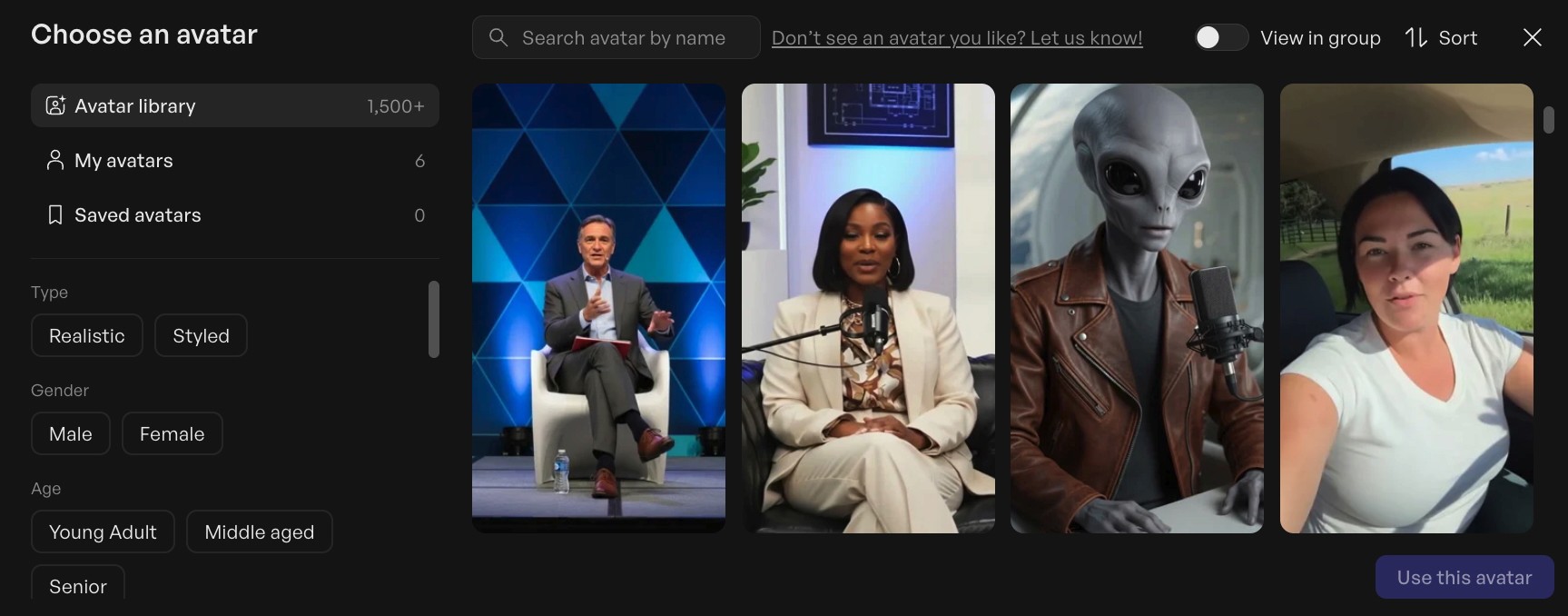
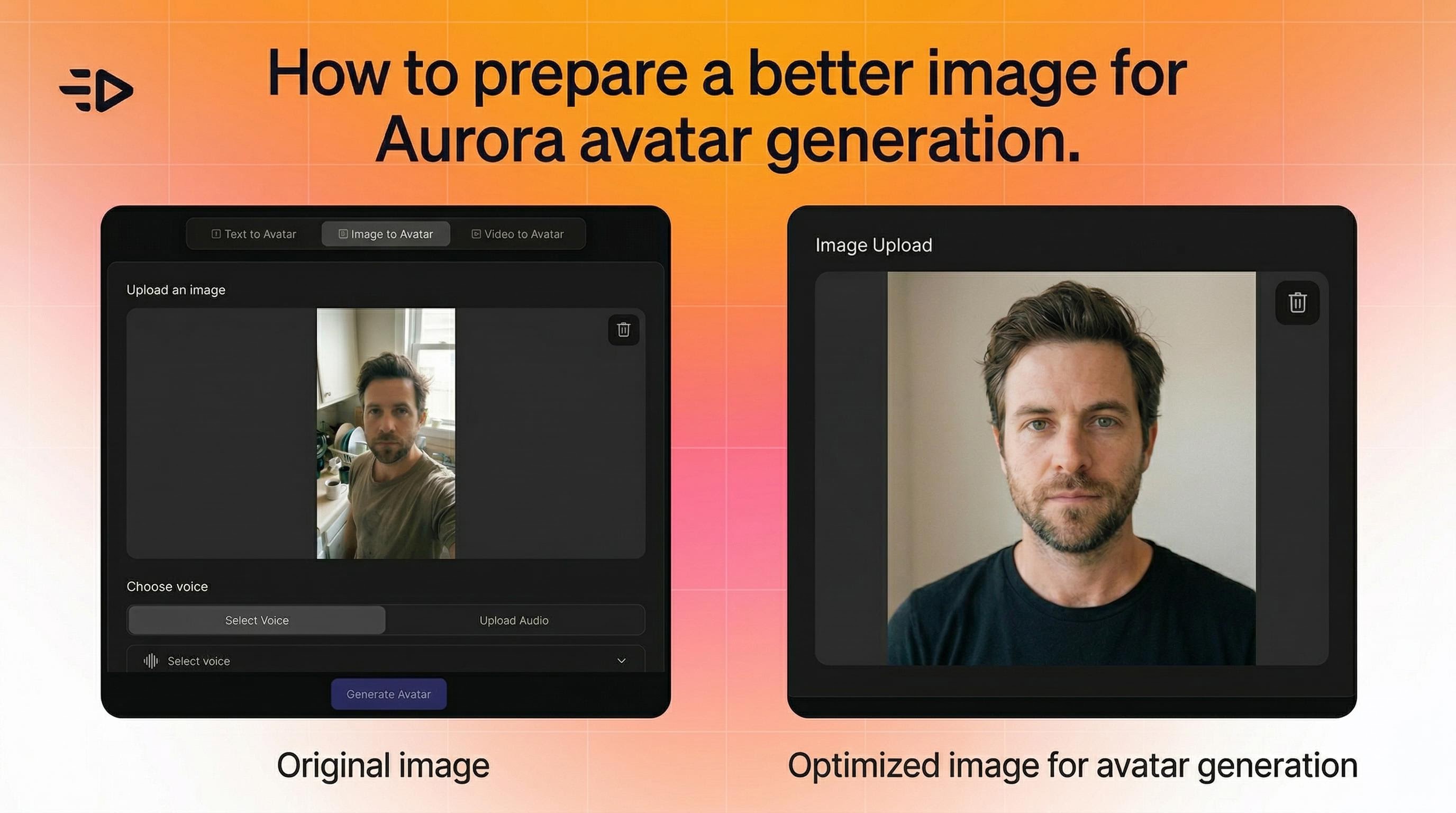
Aurora est flexible - elle fonctionne avec des photos, des rendus et des illustrations de personnages. Mais quelques éléments aident :
Le sujet doit être clairement visible et distinctif dans le cadre
Pour des vidéos multi-scènes cohérentes, gardez un cadrage similaire pour toutes les images (par exemple, toutes les photos en portrait)
Si le mouvement semble non naturel, essayez une image avec une pose plus propre et plus neutre
Il n'y a pas de limitations strictes sur l'angle, l'éclairage ou la composition. Aurora s'ajuste dynamiquement.
2. Utilisez le modèle de voix V3
C'est non négociable pour des résultats de qualité. Le modèle de voix V3 offre la synchronisation labiale la plus précise et la plus large gamme d'expressions. Les anciens modèles de voix produisent un rendu visiblement inférieur.
Gardez la vitesse de parole modérée et claire. Si la synchronisation semble légèrement décalée, ralentir légèrement la voix règle généralement le problème. Ajoutez des pauses naturelles entre les phrases - elles donnent à l'avatar de la place pour respirer et rendent la performance plus humaine.
3. Maîtrisez votre prompt
C'est là que la plupart des gens laissent des résultats sur la table. Le prompt indique à Aurora comment l'avatar doit se comporter – pas seulement à quoi il ressemble, mais comment il se déplace, quelle émotion il transmet et comment il interagit avec la scène.
Utilisez ceci comme base de votre prompt pour toute vidéo standard de visage parlant :
Interview en studio 4K, plan moyen serré (cadre des épaules). Fond gris clair continu, éclairage central doux uniforme - pas de changement d'éclairage. Le présentateur regarde l'objectif, le contact visuel reste stable. Les mains restent sous le cadre, le corps parfaitement immobile. Ultra-net.
De là, ajoutez des indices comportementaux spécifiques à votre cas d'utilisation.
Exemples de prompts par format :
Cas d'utilisation | Prompt Comportemental à Ajouter |
|---|---|
Démo de produit | La personne tenant le produit montre l'étiquette face à la caméra tout en expliquant, en la pointant de temps en temps. |
Visage parlant naturel | La personne parle et fait face à la caméra de manière directe et naturelle avec un mouvement de la poitrine respirant. Gestes naturels d'explication et mouvements oculaires. |
Podcast | La personne regarde et fait face sur le côté comme si elle parlait à quelqu'un dans cette direction, avec une expression engageante montrant un intérêt pour le sujet. |
Selfie UGC | La personne parle devant la caméra avec une main non visible. La caméra a un léger tremblement comme si elle était tenue à la main. |
Critique de produit enthousiaste | Les mains de la personne bougent avec enthousiasme pour expliquer les avantages du produit. |
Plus vous êtes spécifique sur le ton émotionnel et le comportement physique, meilleur sera le résultat. Les prompts vagues produisent des résultats génériques.
Astuce pro : Utilisez GPT pour combiner la configuration cinématographique de base avec votre cas d'utilisation spécifique. Prompt : "Générez un prompt Aurora optimisé pour une démo produit [X]" et il combinera automatiquement le cadre technique avec les bons indices comportementaux.
4. Ajustez le prompt_guidance
Aurora a un paramètre prompt_guidance allant de 0 à 4. Il contrôle à quel point le modèle suit strictement votre prompt par rapport à la variation naturelle autorisée.
Commencez à 1 pour la plupart des scènes. Cela donne au modèle de la latitude pour se comporter naturellement tout en suivant la direction.
Augmentez-le si l'avatar s'éloigne du prompt ou ne suit pas les indices comportementaux que vous avez définis.
Diminuez-le si la performance semble rigide ou mécanique.
5. Assurez l'accord émotionnel entre audio, image et prompt
L'erreur la plus courante : utiliser une piste audio énergique et dynamique avec une image au visage neutre et un prompt comportemental calme. Le modèle fusionne ces trois entrées. S'ils tirent dans des directions différentes, le résultat semble incohérent.
Si votre audio est enthousiaste, votre prompt doit appeler un comportement énergique et expressif. S'il est calme et informatif, votre prompt doit le refléter. Plus ces trois entrées sont alignées, plus le résultat est convaincant.
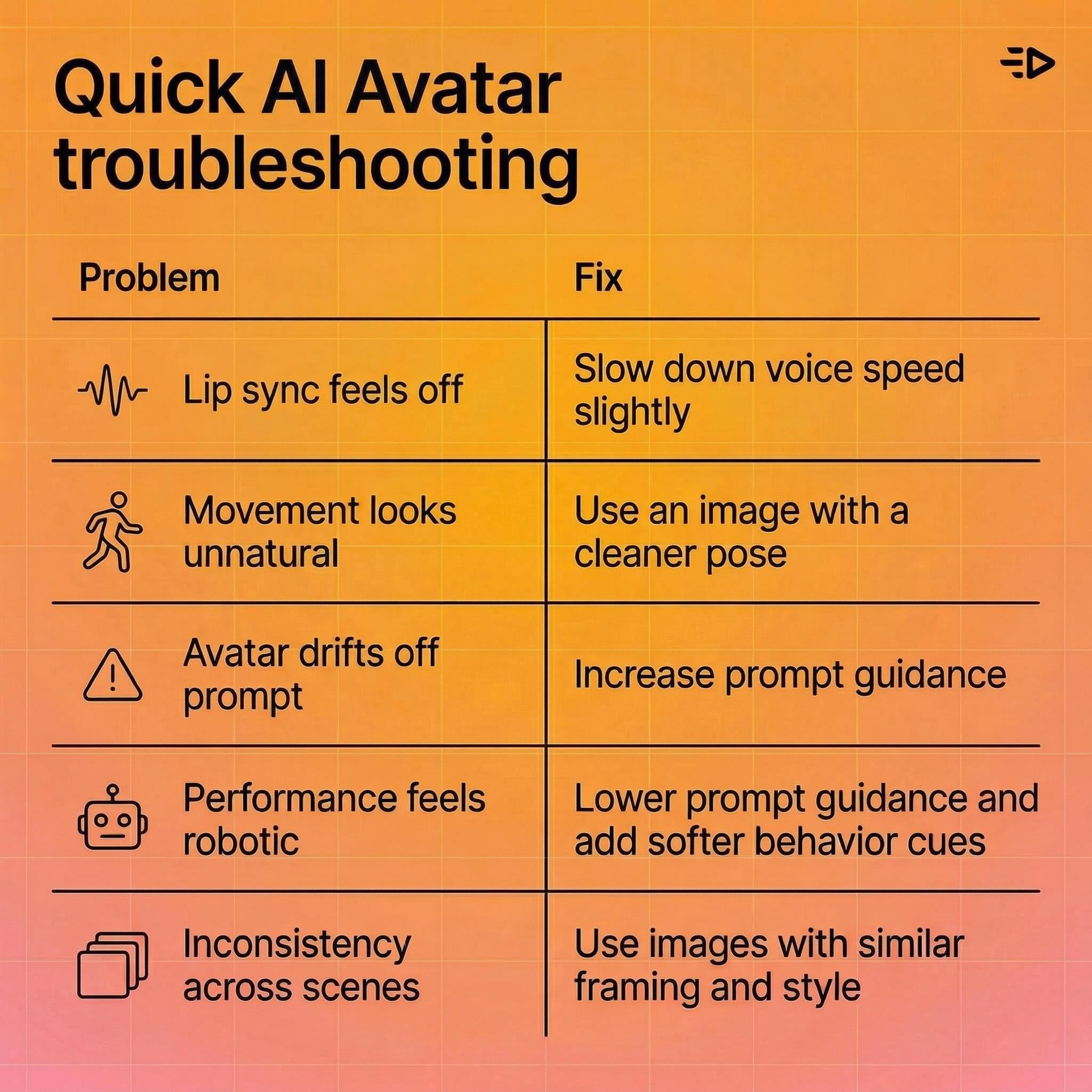
Dépannage rapide
Problème | Solution |
|---|---|
La synchronisation labiale semble décalée | Ralentissez légèrement la vitesse de la voix |
Le mouvement semble non naturel | Essayez une autre image avec une pose plus propre |
L'avatar s'éloigne du prompt | Augmentez le prompt_guidance |
La performance semble trop robotique | Baissez le prompt_guidance; ajoutez des indices comportementaux plus souples |
Incohérence entre les scènes | Utilisez des images avec un cadrage et un style similaires |
La vue d'ensemble
Aurora représente une avancée significative dans la génération de vidéos AI — non pas parce que c'est une nouveauté, mais parce qu'elle résout un véritable problème de production. Créer une vidéo d'avatar de haute qualité nécessitait autrefois une caméra, un studio, un artiste, et un flux de travail de post-production. Maintenant, il nécessite une photo et un script.
Pour les marketeurs en performance gérant des campagnes rémunérées, cela change le calcul des tests créatifs. Pour les agences gérant plusieurs clients, cela change l'économie de la production vidéo. Pour quiconque a déjà renoncé aux annonces vidéo en raison de leur coût ou de leur complexité, cela supprime entièrement la barrière.
Le modèle est en ligne sur Creatify, et les intégrations avec ElevenLabs, Runware et fal.ai signifient qu'il est de plus en plus accessible en tant que capacité autonome pour les développeurs et les créateurs construisant sur l'infrastructure AI.
Une photo. Un clip audio. Une vidéo qui semble avoir été tournée en studio.
La plupart des générateurs de vidéos AI vous donnent la vallée dérangeante - des bouches qui bougent, des yeux qui ne bougent pas, des corps qui restent figés comme des découpages en carton. Aurora est conçu pour remédier à cela.
Aurora est le modèle de diffusion propriétaire de Creatify (DiT) pour la synthèse d'avatar pilotée par l'audio. Donnez-lui une photo et un clip audio, et il génère une vidéo de qualité studio de cette personne parlant, présentant ou chantant - avec des expressions faciales synchronisées, des mouvements oculaires naturels, une respiration et des gestes de la partie supérieure du corps complets. Ce n'est pas juste de la synchronisation labiale. C'est une performance complète.
Le modèle a déjà été intégré dans ElevenLabs, Runware et fal.ai comme l'un des premiers modèles de génération vidéo - un signal de la direction que prend la génération vidéo par l'AI.
Ce guide explique comment en tirer les meilleurs résultats.
Qu'est-ce qui rend Aurora différent
La plupart des outils de visage parlant animent la bouche et s'arrêtent là. Aurora traite l'avatar comme une personne entière, établissant un nouveau standard pour la génération de vidéo AI réaliste.
Voici ce que le modèle produit réellement :
Synchronisation labiale qui suit l'audio avec précision, y compris les formes subtiles de la bouche pour différents phonèmes
Expressions faciales qui correspondent au ton vocal et à la livraison émotionnelle
Mouvements des yeux - clignements, déplacements du regard, concentration naturelle
Mouvement de la tête - hochements, inclinaisons, changements de position subtils
Gestes de la partie supérieure du corps - mouvements des mains, de l'épaule, le type de mouvement naturel qui rend un visage parlant réaliste plutôt que robotique
Respiration - mouvement de la poitrine entre les phrases
L'architecture sous-jacente fusionne un encodeur d'image, un encodeur de texte, et un encodeur audio dans un espace latent partagé, afin que le modèle comprenne le contexte émotionnel de ce qui est dit et le reflète visuellement. Si l'audio semble enthousiaste, l'avatar a l'air enthousiaste.
Ce que vous pouvez créer avec
Aurora prend en charge une large gamme de types de contenu au-delà de simples visages parlants, ce qui en fait un outil puissant pour les flux de travail de génération de vidéos AI:
Démo de produit - Montrez un porte-parole tenant un produit, le pointant et expliquant ses avantages. Fonctionne pour les soins de la peau, la technologie, les biens de consommation, tout.
Annonces de style UGC - Format selfie, léger mouvement de la caméra à main levée, livraison décontractée. Difficile de distinguer du contenu de créateur réel.
Extraits de podcast - L'avatar fait légèrement face sur le côté comme s'il parlait à un co-animateur, avec une expression engagée, conversationnelle.
Contenu multilingue - Générez la même vidéo dans n'importe quelle langue sans réenregistrer. Aurora garde les mouvements labiaux de l'avatar synchronisés avec le nouvel audio.
Avatars chanteurs - Donnez-lui une pochette d'album et une chanson, et l'avatar l'interprète. Utile pour le marketing musical ou le contenu de divertissement.
Personnages animés - Fonctionne avec des personnages illustrés et un art stylisé, pas seulement des photos réalistes.
Obtenir les meilleurs résultats avec la vidéo AI
1. Commencez avec la bonne image
Aurora est flexible - elle fonctionne avec des photos, des rendus et des illustrations de personnages. Mais quelques éléments aident :
Le sujet doit être clairement visible et distinctif dans le cadre
Pour des vidéos multi-scènes cohérentes, gardez un cadrage similaire pour toutes les images (par exemple, toutes les photos en portrait)
Si le mouvement semble non naturel, essayez une image avec une pose plus propre et plus neutre
Il n'y a pas de limitations strictes sur l'angle, l'éclairage ou la composition. Aurora s'ajuste dynamiquement.
2. Utilisez le modèle de voix V3
C'est non négociable pour des résultats de qualité. Le modèle de voix V3 offre la synchronisation labiale la plus précise et la plus large gamme d'expressions. Les anciens modèles de voix produisent un rendu visiblement inférieur.
Gardez la vitesse de parole modérée et claire. Si la synchronisation semble légèrement décalée, ralentir légèrement la voix règle généralement le problème. Ajoutez des pauses naturelles entre les phrases - elles donnent à l'avatar de la place pour respirer et rendent la performance plus humaine.
3. Maîtrisez votre prompt
C'est là que la plupart des gens laissent des résultats sur la table. Le prompt indique à Aurora comment l'avatar doit se comporter – pas seulement à quoi il ressemble, mais comment il se déplace, quelle émotion il transmet et comment il interagit avec la scène.
Utilisez ceci comme base de votre prompt pour toute vidéo standard de visage parlant :
Interview en studio 4K, plan moyen serré (cadre des épaules). Fond gris clair continu, éclairage central doux uniforme - pas de changement d'éclairage. Le présentateur regarde l'objectif, le contact visuel reste stable. Les mains restent sous le cadre, le corps parfaitement immobile. Ultra-net.
De là, ajoutez des indices comportementaux spécifiques à votre cas d'utilisation.
Exemples de prompts par format :
Cas d'utilisation | Prompt Comportemental à Ajouter |
|---|---|
Démo de produit | La personne tenant le produit montre l'étiquette face à la caméra tout en expliquant, en la pointant de temps en temps. |
Visage parlant naturel | La personne parle et fait face à la caméra de manière directe et naturelle avec un mouvement de la poitrine respirant. Gestes naturels d'explication et mouvements oculaires. |
Podcast | La personne regarde et fait face sur le côté comme si elle parlait à quelqu'un dans cette direction, avec une expression engageante montrant un intérêt pour le sujet. |
Selfie UGC | La personne parle devant la caméra avec une main non visible. La caméra a un léger tremblement comme si elle était tenue à la main. |
Critique de produit enthousiaste | Les mains de la personne bougent avec enthousiasme pour expliquer les avantages du produit. |
Plus vous êtes spécifique sur le ton émotionnel et le comportement physique, meilleur sera le résultat. Les prompts vagues produisent des résultats génériques.
Astuce pro : Utilisez GPT pour combiner la configuration cinématographique de base avec votre cas d'utilisation spécifique. Prompt : "Générez un prompt Aurora optimisé pour une démo produit [X]" et il combinera automatiquement le cadre technique avec les bons indices comportementaux.
4. Ajustez le prompt_guidance
Aurora a un paramètre prompt_guidance allant de 0 à 4. Il contrôle à quel point le modèle suit strictement votre prompt par rapport à la variation naturelle autorisée.
Commencez à 1 pour la plupart des scènes. Cela donne au modèle de la latitude pour se comporter naturellement tout en suivant la direction.
Augmentez-le si l'avatar s'éloigne du prompt ou ne suit pas les indices comportementaux que vous avez définis.
Diminuez-le si la performance semble rigide ou mécanique.
5. Assurez l'accord émotionnel entre audio, image et prompt
L'erreur la plus courante : utiliser une piste audio énergique et dynamique avec une image au visage neutre et un prompt comportemental calme. Le modèle fusionne ces trois entrées. S'ils tirent dans des directions différentes, le résultat semble incohérent.
Si votre audio est enthousiaste, votre prompt doit appeler un comportement énergique et expressif. S'il est calme et informatif, votre prompt doit le refléter. Plus ces trois entrées sont alignées, plus le résultat est convaincant.
Dépannage rapide
Problème | Solution |
|---|---|
La synchronisation labiale semble décalée | Ralentissez légèrement la vitesse de la voix |
Le mouvement semble non naturel | Essayez une autre image avec une pose plus propre |
L'avatar s'éloigne du prompt | Augmentez le prompt_guidance |
La performance semble trop robotique | Baissez le prompt_guidance; ajoutez des indices comportementaux plus souples |
Incohérence entre les scènes | Utilisez des images avec un cadrage et un style similaires |
La vue d'ensemble
Aurora représente une avancée significative dans la génération de vidéos AI — non pas parce que c'est une nouveauté, mais parce qu'elle résout un véritable problème de production. Créer une vidéo d'avatar de haute qualité nécessitait autrefois une caméra, un studio, un artiste, et un flux de travail de post-production. Maintenant, il nécessite une photo et un script.
Pour les marketeurs en performance gérant des campagnes rémunérées, cela change le calcul des tests créatifs. Pour les agences gérant plusieurs clients, cela change l'économie de la production vidéo. Pour quiconque a déjà renoncé aux annonces vidéo en raison de leur coût ou de leur complexité, cela supprime entièrement la barrière.
Le modèle est en ligne sur Creatify, et les intégrations avec ElevenLabs, Runware et fal.ai signifient qu'il est de plus en plus accessible en tant que capacité autonome pour les développeurs et les créateurs construisant sur l'infrastructure AI.
Une photo. Un clip audio. Une vidéo qui semble avoir été tournée en studio.

Prêt à transformer votre produit en une vidéo captivante ?