How to use Creatify's Ad Flow Tool

How to use Creatify's Ad Flow Tool

Niyah Ali - 肖像

作者:

尼雅·阿里

how to create an avatar from a photo
Niyah Ali - 肖像

尼雅·阿里

分享

LinkedIn 图标
X 图标
Facebook 图标

在本文中

How to Build a UGC Video Ad in Adflow, Creatify's Node-Based Ad Editor | Creatify


Most ad production workflows are a mess of disconnected tools — a script in one app, image generation in another, video editing somewhere else.


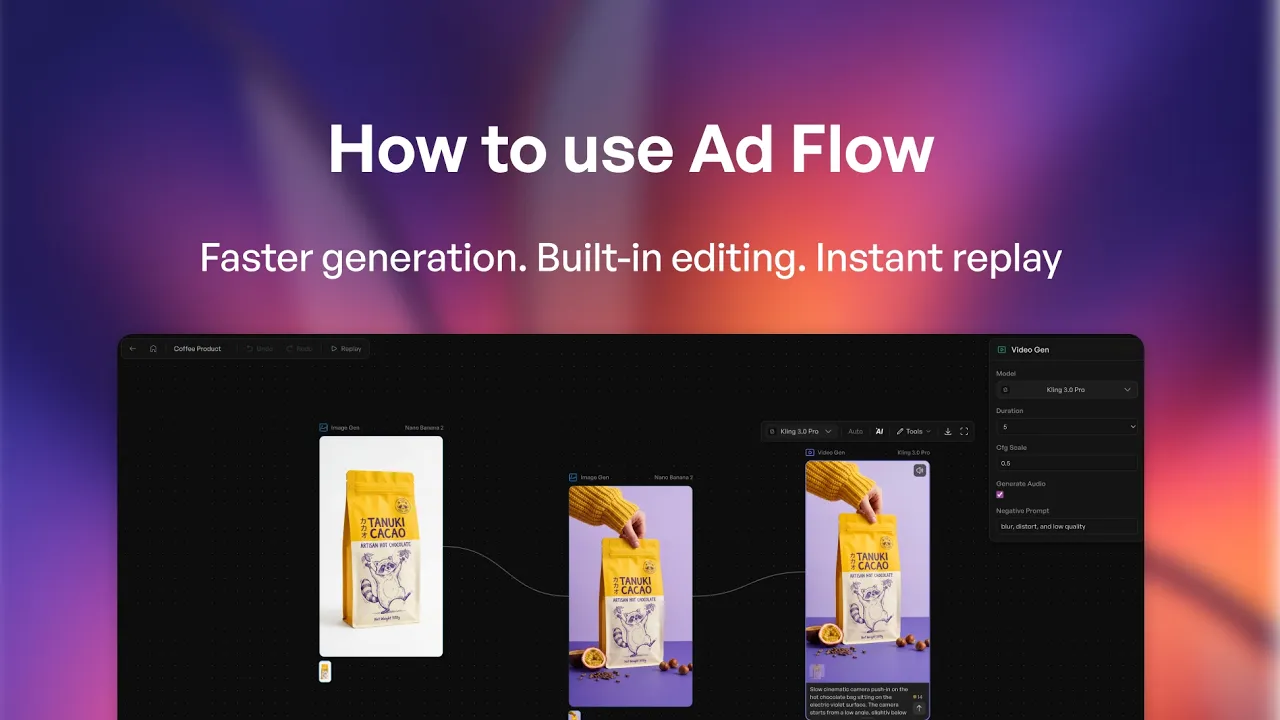
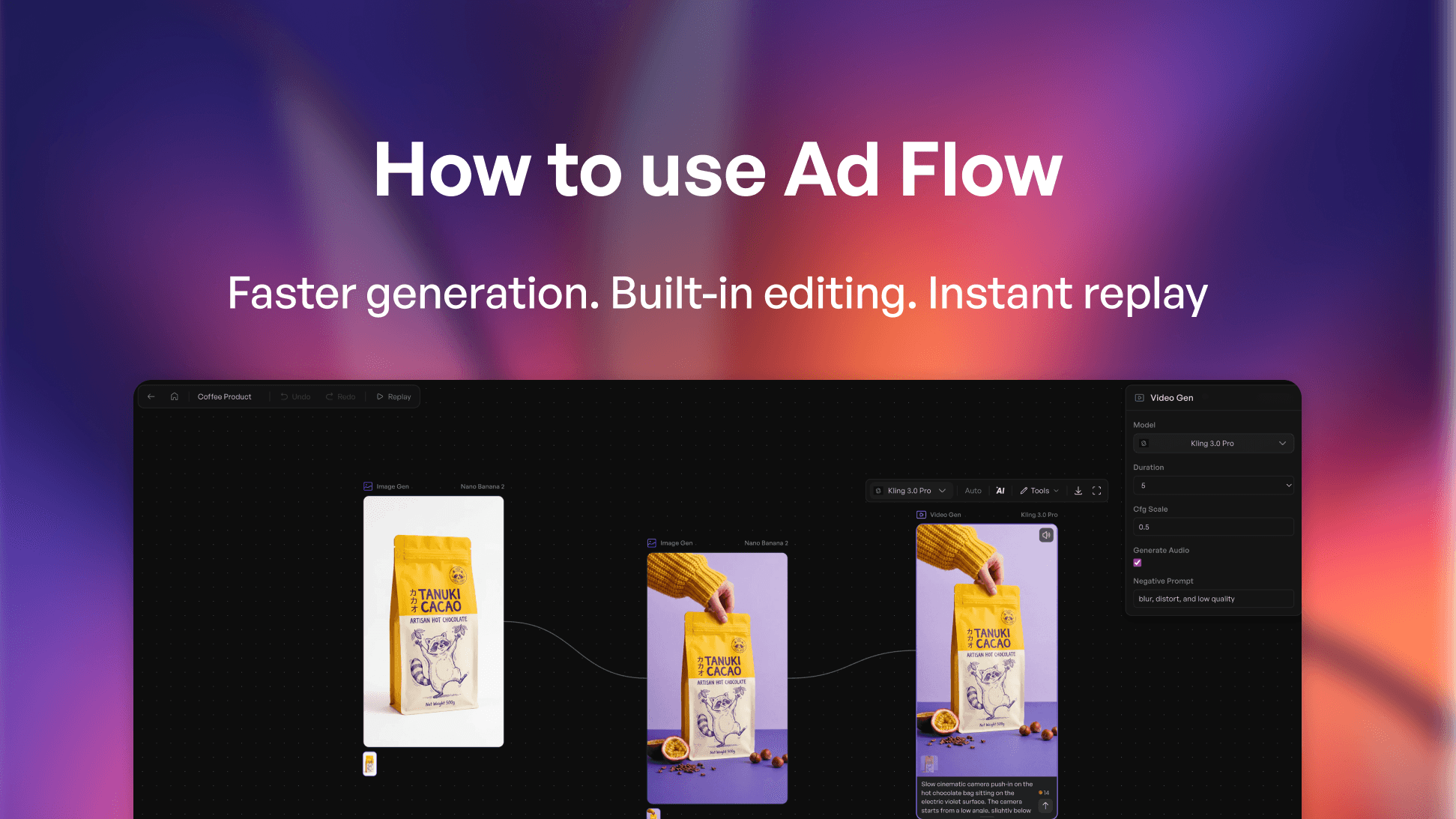
Adflow puts the entire pipeline on one canvas, and this is exactly how to use it.


What Adflow Is and Why It's Different


Adflow is Creatify's node-based ad editor — the first of its kind built specifically for ad production. Instead of moving between tools, you build a

visual workflow where each step connects to the next: product image to script, script to image gen, image gen to video gen, video gen to editor.

Every node lives on the same canvas, and every output flows directly into the next step.

The canvas gives you two starting points: a blank workflow or a pre-built template. Templates cover physical products, services, and apps — each one

a fully mapped flow you can reference or build from. For this walkthrough, we're building from scratch using Vital Proteins collagen powder as the product.


Setting Up Your Assets: Product Image and Avatar


The first step is pulling in your two primary assets. For the product, you can grab an image directly from wherever it lives — Target, Shopify,

Amazon, your own upload. Copy the image, paste it onto the canvas, and it becomes a node you can connect to anything downstream.


For the avatar, Adflow's Smart Asset Library centralizes everything you've brought into Creatify — products, uploads, and the full avatar library.

Since this is a supplement brand, the right choice is someone who fits the context: fitness-adjacent, kitchen setting. Olivia works. Drag her in,

  and now you have both primary assets on the canvas ready to chain together.


Generating a Script with the Text Node

Hit T on your keyboard to drop a text node. At the top you'll see the model selector — Claude Opus is the default, and it's the right call for

nuanced, natural-sounding UGC scripts. There's also an AI Enhance toggle that takes a simple prompt and expands it into something more detailed
before generating.


The prompt here is straightforward: paste in the product URL from Target, specify the CTA ("try this out now today"), and hit generate. What comes

back is a full UGC-style script with a strong hook, natural product talk, and a clear call to action — structured exactly the way a real UGC creator

would deliver it.


From Script to Image to Video Ad

With the script done, the next node is image gen. Press I to open it. Select your model (Nano Banana 2 is the default, but any top-market model

works), set your ratio to 9:16, drag in Olivia and the product, and write a simple prompt: "Have Olivia hold the product and smile at the camera."


The AI Enhance prompt is available here too if you need it. Generate, and you get a custom visual built from your actual assets.


From there, connect the image to the video gen node. Seedance Fast 2.0 is one of the strongest models available right now, but Aurora — Creatify's

in-house model — is specifically built for UGC-style ads and worth testing. Set ratio to 9:16, pull in the script as the prompt, and generate. The

output is a video ad built entirely from your product image, your avatar, and your script — no camera, no studio.


Duration defaults to 5 seconds but can be pushed to 10 or 15 seconds depending on the model. For a UGC ad, 10 seconds hits the right middle ground.


Multi-Shot Sequences, the Video Editor, and Team Collaboration

Adflow isn't limited to single-shot outputs. If you want a multi-sequence ad with different camera angles or scenes, you can feed multiple video gen

outputs into the video editor node and assemble them into one cohesive ad. Each clip is a node; the editor is where they come together.


The feature that makes Adflow especially useful for teams is Replay. One click records and plays back your entire workflow end-to-end, at whatever

speed you want. You get a shareable link you can send to anyone on your team — no exports, no screen recordings, just a direct view of exactly how

the ad was built.


For creative teams managing multiple campaigns, that kind of transparency is rare. The whole production chain — assets, script, image, video, edit —

is visible, repeatable, and shareable from one place.


The Takeaway

Adflow is what a proper ad production tool looks like when it's built for ads specifically: node-based, model-agnostic, and designed for the full

 workflow rather than just one step of it. The canvas approach means you can see exactly how every asset connects, iterate on any node without

rebuilding from scratch, and hand off the workflow to anyone on your team without explanation.


  👉 Try Creatify free → https://app.creatify.ai/auth/login?ut=12

How to Build a UGC Video Ad in Adflow, Creatify's Node-Based Ad Editor | Creatify


Most ad production workflows are a mess of disconnected tools — a script in one app, image generation in another, video editing somewhere else.


Adflow puts the entire pipeline on one canvas, and this is exactly how to use it.


What Adflow Is and Why It's Different


Adflow is Creatify's node-based ad editor — the first of its kind built specifically for ad production. Instead of moving between tools, you build a

visual workflow where each step connects to the next: product image to script, script to image gen, image gen to video gen, video gen to editor.

Every node lives on the same canvas, and every output flows directly into the next step.

The canvas gives you two starting points: a blank workflow or a pre-built template. Templates cover physical products, services, and apps — each one

a fully mapped flow you can reference or build from. For this walkthrough, we're building from scratch using Vital Proteins collagen powder as the product.


Setting Up Your Assets: Product Image and Avatar


The first step is pulling in your two primary assets. For the product, you can grab an image directly from wherever it lives — Target, Shopify,

Amazon, your own upload. Copy the image, paste it onto the canvas, and it becomes a node you can connect to anything downstream.


For the avatar, Adflow's Smart Asset Library centralizes everything you've brought into Creatify — products, uploads, and the full avatar library.

Since this is a supplement brand, the right choice is someone who fits the context: fitness-adjacent, kitchen setting. Olivia works. Drag her in,

  and now you have both primary assets on the canvas ready to chain together.


Generating a Script with the Text Node

Hit T on your keyboard to drop a text node. At the top you'll see the model selector — Claude Opus is the default, and it's the right call for

nuanced, natural-sounding UGC scripts. There's also an AI Enhance toggle that takes a simple prompt and expands it into something more detailed
before generating.


The prompt here is straightforward: paste in the product URL from Target, specify the CTA ("try this out now today"), and hit generate. What comes

back is a full UGC-style script with a strong hook, natural product talk, and a clear call to action — structured exactly the way a real UGC creator

would deliver it.


From Script to Image to Video Ad

With the script done, the next node is image gen. Press I to open it. Select your model (Nano Banana 2 is the default, but any top-market model

works), set your ratio to 9:16, drag in Olivia and the product, and write a simple prompt: "Have Olivia hold the product and smile at the camera."


The AI Enhance prompt is available here too if you need it. Generate, and you get a custom visual built from your actual assets.


From there, connect the image to the video gen node. Seedance Fast 2.0 is one of the strongest models available right now, but Aurora — Creatify's

in-house model — is specifically built for UGC-style ads and worth testing. Set ratio to 9:16, pull in the script as the prompt, and generate. The

output is a video ad built entirely from your product image, your avatar, and your script — no camera, no studio.


Duration defaults to 5 seconds but can be pushed to 10 or 15 seconds depending on the model. For a UGC ad, 10 seconds hits the right middle ground.


Multi-Shot Sequences, the Video Editor, and Team Collaboration

Adflow isn't limited to single-shot outputs. If you want a multi-sequence ad with different camera angles or scenes, you can feed multiple video gen

outputs into the video editor node and assemble them into one cohesive ad. Each clip is a node; the editor is where they come together.


The feature that makes Adflow especially useful for teams is Replay. One click records and plays back your entire workflow end-to-end, at whatever

speed you want. You get a shareable link you can send to anyone on your team — no exports, no screen recordings, just a direct view of exactly how

the ad was built.


For creative teams managing multiple campaigns, that kind of transparency is rare. The whole production chain — assets, script, image, video, edit —

is visible, repeatable, and shareable from one place.


The Takeaway

Adflow is what a proper ad production tool looks like when it's built for ads specifically: node-based, model-agnostic, and designed for the full

 workflow rather than just one step of it. The canvas approach means you can see exactly how every asset connects, iterate on any node without

rebuilding from scratch, and hand off the workflow to anyone on your team without explanation.


  👉 Try Creatify free → https://app.creatify.ai/auth/login?ut=12

图标
图标

准备好将您的产品转变为引人入胜的视频了吗?

准备好加速您的营销了吗?

使用AI生成的视频广告,在几分钟内测试您的新产品理念
箭头图标。
Gradient

准备好加速您的营销了吗?

使用AI生成的视频广告,在几分钟内测试您的新产品理念

箭头图标。
Gradient

准备好加速您的营销了吗?

使用AI生成的视频广告,在几分钟内测试您的新产品理念

箭头图标。
Gradient

准备好加速您的营销了吗?

使用AI生成的视频广告,在几分钟内测试您的新产品理念

箭头图标。
Gradient
渐变